Downgrading Vista to XP Compaq Presario CQ40-109TU
I'm not in the same impression as you for Vista, in some points, I found VISTA has its own advantages.
Since your model was built for VISTA, some of the functions may not work i.e brightness control (Fn +F7 or F8)
However, you are not alone, many CQ40 has downgraded their notebook.
If you wish for XP drivers try the following steps.
_____
Make your Vista Recovery cd/dvd if you haven't yet, found out here
Your model needs ICH9 sata driver to be sliptreamed in XP CD installer. If you did it right, you'll pass BSOD error.
Use Nlite to sliptream ICH9 sata driver.
A good guide to sliptream sata driver, here
Note: do NOT use sata driver from that guide, your sata driver is ICH9 given below.
ICH9 sata driver,
The driver is located in iaAHCI.inf and is called ICH9M-E/M SATA AHCI Controller, here
Nlite download, here
Some suggestions to avoid problems while installing XP:
1. Try NOT slipstream all of sata drivers, use only ICH9 --> ICH9M-E/M SATA AHCI Controller
2. Use XP-SP2, a lot more easy to use since many of XP drivers were built based on XP-SP2.
3. Burn XP installer slowly and not using the maximum speed, sometimes it create errors
4. Choose a reputable CD media, not the cheap one.
Installing Audio was the most difficult part, since BIOS incompatibility.
Please update your BIOS before installing MS-UAA, at least to F.12, here
F.24 is the latest BIOS up to this date.
____
Drivers for CQ40-109TU
Intel Chipset,(install and reboot before other drivers), here
Install MS-UAA before Intel graphics (include HDMI sound) and IDT sound drivers , here
Intel Graphic driver, here
IDT High-Definition Audio CODEC Driver, here
High-Definition Audio (HDA) Modem Installer and Driver, here
Broadcom Wireless, here
Realtek RTL8102E Family PCI-E Fast Ethernet NIC, here
JMB38X Card Reader Host Controller Driver, here
ENE CIR Receiver (your Vista driver), here
or if it does not work try Vista driver verified from Intel, here
ALPS Touchpad Driver, here
.Net Framework(required before HP Quick Launch Buttons), here
HP Quick Lauch Buttons, here
If you had Bluetooth, here
If you had for 7 unknown devices (buttons drivers), here
Do manual installation
Go to device manager, right click unknown device,
Choose to update driver, No to connect,
Choose install from a list or specific location, Don't search, Have disk,
Browse to the location of machine.inf.
Do it for the rest of unknown devices
Good luck
Source : http://h30434.www3.hp.com/psg/board/message....Compaq Presario CQ60-101TX Windows XP Driver
CQ60-101TX Drivers for windows XP
Intel Chipset,(install and reboot before other drivers):
http://tinyurl.com/54r6dt
if you have Nvidia video graphics
NVIDIA GeForce 9200
Nvidia ForceWare X 177.98 for Windows XP/2K 32bit, here:
http://tinyurl.com/6dz435
3-step process to install:
1. Download driver, double click and select extract,
2. Download modded INF and replace original INF in extracted folder,
3. Install & reboot.
MS-UAA (required with a reboot before intel Video driver and Conexant Audio driver)
here:
ftp://ftp.hp.com/pub/softpaq/sp33501-34000/sp33867.exe
if you have Intel graphics
Mobile Intel 4 Series Express Chipset Family Graphics
http://tinyurl.com/48lunj
Conexant SmartAudio 221
here:
http://www.mediafire.com/?dg0cmmkm4y4
Use this for audio. Unzip to a folder.
Run installer. if it errors use Device Manager.
From Device Manager,right click "Audio Device on HD",choose Update driver,
No to connect,
Install from a list or specific location,
Select Don't Search, I will choose the driver to install,
For the Hardware Type select 'Show All Devices'
Remove the check from "Show Compatible Hardware" and click on "Have Disk".
Next...browse to the unzipped folder and choose the "WiSVHe5.inf".
Ignore XP when it complains.
Reboot.
Conexant HDAUDIO Soft Data Fax Modem with SmartCP Driver
ftp://ftp.hp.com/pub/softpaq/sp33501-34000/sp33839.exe
if you have Atheros Wireless driver
here (your VISTA driver):
ftp://ftp.hp.com/pub/softpaq/sp39001-39500/sp39403.exe
or if it does not work try here:
http://www.megaupload.com/?d=P8I57N0S
if you have intel wireless
here:
Intel PRO/Wireless Drivers
ftp://ftp.hp.com/pub/softpaq/sp38501-39000/sp38890.exe
if you have Broadcom Wireless
here:
ftp://ftp.hp.com/pub/softpaq/sp39501-40000/sp39912.exe
Realtek usb 2.0 Card reader:
http://tinyurl.com/2bj95k
Realtek RTL8101E Family PCI-E Fast Ethernet NIC Driver
http://tinyurl.com/4ssd97
Synaptics Touchpad
ftp://ftp.hp.com/pub/softpaq/sp37001-37500/sp37065.exe
.Net Framework(before Quick Launch):
http://tinyurl.com/758p8
HP Quick Launch Buttons
ftp://ftp.hp.com/pub/softpaq/sp40001-40500/sp40139.exe
If you have Bluetooth,
The HP Integrated Module is your Bluetooth Wireless
here:
ftp://ftp.hp.com/pub/softpaq/sp38501-39000/sp38983.exe
If you had for 7 unknown devices (buttons drivers)here:
http://www.mediafire.com/?nnnzjmojcjy
Compaq Presario CQ60-150EM Windows XP Driver
Intel Chipset,(install and reboot before other drivers):
http://tinyurl.com/54r6dt
if you have Nvidia video graphics
NVIDIA GeForce 9200
Nvidia ForceWare X 177.98 for Windows XP/2K 32bit, here:
http://tinyurl.com/6dz435
3-step process to install:
1. Download driver, double click and select extract,
2. Download modded INF and replace original INF in extracted folder,
3. Install & reboot.
MS-UAA (required with a reboot before intel Video and Audio driver)
here:
ftp://ftp.hp.com/pub/softpaq/sp33501-34000/sp33867.exe
if you have intel graphics
Mobile Intel 4 Series Express Chipset Family Graphics
http://tinyurl.com/48lunj
Conexant SmartAudio 221
here:
http://www.mediafire.com/?dg0cmmkm4y4
Use this for audio. Unzip to a folder.
Run installer. if it errors use Device Manager.
From Device Manager,right click "Audio Device on HD",choose Update driver,
No to connect,
Install from a list or specific location,
Select Don't Search, I will choose the driver to install,
For the Hardware Type select 'Show All Devices'
Remove the check from "Show Compatible Hardware" and click on "Have Disk".
Next...browse to the unzipped folder and choose the "WiSVHe5.inf".
Ignore XP when it complains.
Reboot.
Conexant HDAUDIO Soft Data Fax Modem with SmartCP Driver
ftp://ftp.hp.com/pub/softpaq/sp33501-34000/sp33839.exe
if you have Atheros Wireless driver
here (your VISTA driver):
ftp://ftp.hp.com/pub/softpaq/sp39001-39500/sp39403.exe
or if it does not work try here:
http://www.megaupload.com/?d=P8I57N0S
if you have intel wireless
here:
Intel PRO/Wireless Drivers
ftp://ftp.hp.com/pub/softpaq/sp38501-39000/sp38890.exe
if you have Broadcom Wireless
here:
ftp://ftp.hp.com/pub/softpaq/sp39501-40000/sp39912.exe
Realtek usb 2.0 Card reader:
http://tinyurl.com/2bj95k
Realtek RTL8101E Family PCI-E Fast Ethernet NIC Drive
http://tinyurl.com/4ssd97
Synaptics Touchpad
ftp://ftp.hp.com/pub/softpaq/sp37001-37500/sp37065.exe
.Net Framework(before Quick Launch):
http://tinyurl.com/758p8
HP Quick Launch Buttons
ftp://ftp.hp.com/pub/softpaq/sp40001-40500/sp40139.exe
If you have Bluetooth,
The HP Integrated Module is your Bluetooth Wireless
here:
ftp://ftp.hp.com/pub/softpaq/sp38501-39000/sp38983.exe
If you had for 7 unknown devices (buttons drivers)here:
http://www.mediafire.com/?nnnzjmojcjy
Installation --> right click machine.inf, choose install.
Compaq Presario CQ70-120US XP Drivers
Intel Chipset,(install and reboot before other drivers):
http://tinyurl.com/54r6dt
if you have Nvidia video graphics
NVIDIA GeForce 9200
Nvidia ForceWare X 177.98 for Windows XP/2K 32bit, here:
http://tinyurl.com/6dz435
3-step process to install:
1. Download driver, double click and select extract,
2. Download modded INF and replace original INF in extracted folder,
3. Install & reboot.
or you may try other versions, joint their forum for further details
MS-UAA (required with a reboot before intel Video and Audio driver)
here:
ftp://ftp.hp.com/pub/softpaq/sp33501-34000/sp33867.exe
if you have intel graphics
Mobile Intel 4 Series Express Chipset Family Graphics
win2k_xp1437.exe
http://tinyurl.com/48lunj
Conexant SmartAudio 221
here:
http://www.mediafire.com/?dg0cmmkm4y4
Use this for audio. Unzip to a folder.
Run installer. if it errors use Device Manager.
From Device Manager,right click "Audio Device on HD",choose Update driver,
No to connect,
Install from a list or specific location,
Select Don't Search, I will choose the driver to install,
For the Hardware Type select 'Show All Devices'
Remove the check from "Show Compatible Hardware" and click on "Have Disk".
Next...browse to the unzipped folder and choose the "WiSVHe5.inf".
Ignore XP when it complains.
Reboot.
Conexant HDAUDIO Soft Data Fax Modem with SmartCP Driver
ftp://ftp.hp.com/pub/softpaq/sp33501-34000/sp33839.exe
if you have Atheros Wireless driver
here (your VISTA driver):
ftp://ftp.hp.com/pub/softpaq/sp39001-39500/sp39403.exe
or if it does not work try here:
http://www.megaupload.com/?d=P8I57N0S
if you have intel wireless
here:
Intel PRO/Wireless Drivers
ftp://ftp.hp.com/pub/softpaq/sp38501-39000/sp38890.exe
if you have Broadcom Wireless
here:
ftp://ftp.hp.com/pub/softpaq/sp39501-40000/sp39912.exe
Realtek usb 2.0 Card reader:
http://tinyurl.com/2bj95k
Realtek RTL8101E Family PCI-E Fast Ethernet NIC Driver
http://tinyurl.com/4ssd97
Synaptics Touchpad
ftp://ftp.hp.com/pub/softpaq/sp37001-37500/sp37065.exe
.Net Framework(before Quick Launch):
http://tinyurl.com/758p8
HP Quick Launch Buttons
ftp://ftp.hp.com/pub/softpaq/sp40001-40500/sp40139.exe
If you have Bluetooth,
The HP Integrated Module is your Bluetooth Wireless
here:
ftp://ftp.hp.com/pub/softpaq/sp38501-39000/sp38983.exe
If you had for 7 unknown devices (buttons drivers)here:
http://www.mediafire.com/?nnnzjmojcjy
Compaq Presario CQ50-108 CA xp Drivers
Nvidia Chipset,install and on reboot select/choose ONLY drivers_no mediashield:
http://www.nvidia.com/object/nforce_730a_710a_winxp_18.11.html
Nvidia Graphics:
http://www.laptopvideo2go.com/forum/index.php?showtopic=18338
==================
MS UAA(required with a reboot before Conexant):
http://www.mediafire.com/?4ben9zlesng
Conexant SmartAudio 221:
http://www.mediafire.com/?dg0cmmkm4y4
Unzip to a folder..make note of location.
From Device Manager,right click "Audio Device on High Def Bus",choose Update driver,
No to connect,
Install from a list or specific location,
Select Don't Search, I will choose the driver to install,
For the Hardware Type select 'Show All Devices'
Remove the check from "Show Compatible Hardware" and click on "Have Disk".
Next...browse to the unzipped folder and choose the "WiSVHe5.inf".
Ignore XP when it complains.
Reboot.
=================
.Net Framework(before Q.L.):
http://tinyurl.com/758p8
HP Quick Launch:
ftp://ftp.hp.com/pub/softpaq/sp39001-39500/sp39425.exe
Modem:
ftp://ftp.hp.com/pub/softpaq/sp33501-34000/sp33839.exe
Atheros 50006x Wireless:
http://www.mediafire.com/?e8libjbvmww
Realtek usb 2.0 Card reader:
http://www.realtek.com.tw/downloads/downloadsView.aspx?Langid=1&PNid=15&PFid=25&
Driver for Compaq Presario CQ20-105TU Windows XP
Intel Chipset Installation Utility for ICH9:
ftp://ftp.hp.com/pub/softpaq/sp39001-39500/sp39316.exe
Intel Video Driver and Control Panel
ftp://ftp.hp.com/pub/softpaq/sp39501-40000/sp39880.exe
VGA/Video Driver.
http://tinyurl.com/6ya6rc
MS UAA (required with a reboot before Audio driver)
here:
ftp://ftp.hp.com/pub/softpaq/sp33501-34000/sp33867.exe
ADI SoundMAX AD1984A Audio Driver
here:
ftp://ftp.hp.com/pub/softpaq/sp39501-40000/sp39695.exe
High-Definition Audio (HDA) Modem Installer and Driver
ftp://ftp.hp.com/pub/softpaq/sp39501-40000/sp39545.exe
.Net Framework(required before Quick Launch):
http://tinyurl.com/758p8
HP Quick Launch Buttons
ftp://ftp.hp.com/pub/softpaq/sp39001-39500/sp39425.exe
Restore the missing userinit.exe file
Question : When I logon to either user account (both are set up as administrator) the password is accepted, the message “Loading settings” displays, the wallpaper shows briefly, then the message “Logging off” displays and it comes back to the welcome screen. I tried everything that is explained in this link. I do not see the file userinit.exe or wsaupdater.exe in the system32 folder.
Answer : The DllCache folder (c:\windows\system32\dllcache\) maintains a copy of userinit.exe. Simply copy it to the system32 folder. If not, you may have to expand a copy from the source. (either from the Windows XP CD, or from the ServicePackFiles source path)
As you’re unable to login to the system at present, either use Bart’s PE boot CD, or use the parallel Windows XP installation (if available) to carryout the file/registry operations.
Reset Counter Canon i250, i255, i350, i355
To reset waste ink counter pad in Canon i250, i255, i350, i355 there are two Steps, that is reset manual and reset use software resetter (general tool). Whereas reset manual any two methode can be used. Here Complete tutorial to reset waste ink counter for Canon i250, i255, i350, i355 printers.
Manual Reset for Canon i250, i255, i350, i355
Methode 1 : Manual for service mode
- Unplug power cable from electric source and USB cable from computer.
- Open the printer cover and hold power button.
- Connect power cable to the electric source.
- Close the printer cover then release power button.
Methode 2: Manual for service mode
- Turn off the printer. And disconnect the printer cable.
- Press and hold the POWER button, turn on the printer.
- The indicator LED should be green.
- Press and release the RESUME button , the indicator LED should be orange.
- Press and release the RESUME button again, the indicator LED should be green.
- Release both buttons.
Resettting using software resetter canon i250, i255, i350, i355
- Reconnect the printer cable.
- Download and Run General Tools/software resetter for Canon printers i250, i255, i350, i355.
- Then select USB PORT where your printer installed.
- Choose printer type in SET DESTINATION sections and printer should be reset.
Note : After service mode use software for permanent reset Canon i250, i255, i350, i355
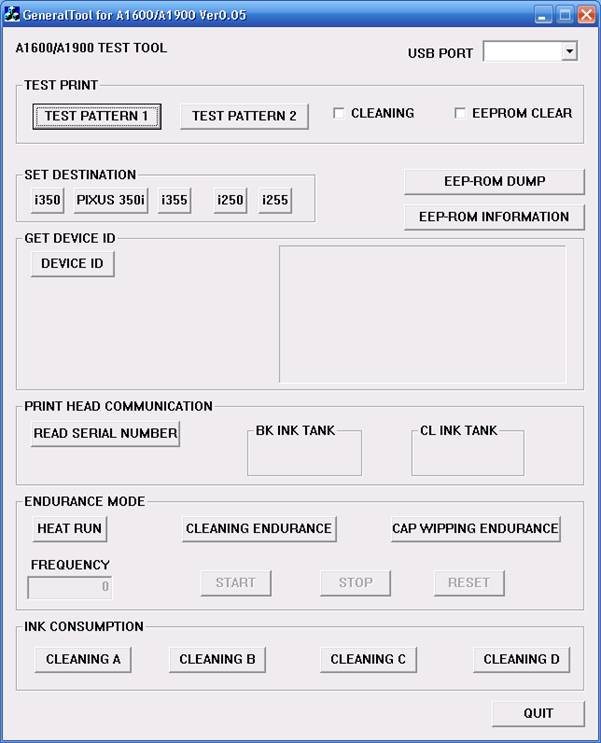
 software Canon i250, i255, i350, i355 (118.9 KiB)
To reset waste ink counter pad in Canon i250, i255, i350, i355 there are two Steps, that is reset manual and reset use software resetter (general tool). Whereas reset manual any two methode can be used. Here Complete tutorial to reset waste ink counter for Canon i250, i255, i350, i355 printers.
Manual Reset for Canon i250, i255, i350, i355
Methode 1 : Manual for service mode
- Unplug power cable from electric source and USB cable from computer.
- Open the printer cover and hold power button.
- Connect power cable to the electric source.
- Close the printer cover then release power button.
Methode 2: Manual for service mode
- Turn off the printer. And disconnect the printer cable.
- Press and hold the POWER button, turn on the printer.
- The indicator LED should be green.
- Press and release the RESUME button , the indicator LED should be orange.
- Press and release the RESUME button again, the indicator LED should be green.
- Release both buttons.
Resettting using software resetter canon i250, i255, i350, i355
- Reconnect the printer cable.
- Download and Run General Tools/software resetter for Canon printers i250, i255, i350, i355.
- Then select USB PORT where your printer installed.
- Choose printer type in SET DESTINATION sections and printer should be reset.
Note : After service mode use software for permanent reset Canon i250, i255, i350, i355
software Canon i250, i255, i350, i355 (118.9 KiB)
How to stop regedit, taskmanager or msconfig from closing automatically
Since i published my “How to remove new folder exe or regsvr exe or autorun inf virus” article many readers have asked me about how to prevent regedit, taskmanger, msconfig etc from closing withing second of it’s opening.
Now i have to say as i have yet to face this issue personally myself, i am not really able to suggest anything but to recommend people to do a boot time scan from avast, and hope that fixes their problem.
But after receiving a repeated request to fix this issue, i decided to write about the approach that i would take if i face this problem and to collaborate with you to solve your problem and in the process create a workable solution to fix this problem, once and for all.
Symptoms of the problem that we are tying to solve,
- you open regedit, the regedit window flickers and closes again,
- you open taskmanager, window opens and immediately closes.
- you try to open msconfig, window closes the moment it opens.
What might be happening?
My thinking is that some rouge process is running that is scanning for these applications and the moment they open, it closes them.
Our Aim : to identify and kill
so what we need to do is, identify these rouge programs and destroy them by first killing the running process and then deleting the actual application from the system. We need to do this to prevent them from running again.
So first let’s try this solution,
- Create the copy of regedit.exe file and put it in another directory.
- you can do this by selecting the regedit.exe file(located in c:\windows directory) and pressing crtl+c and then crtl+v
- move this copied file to another new directory say c:\eme_utils
- Similarly create the copy of task manager located at (C:\WINDOWS\system32\taskmgr.exe) and system configuration utility aka msconfig located at (C:\WINDOWS\PCHealth\HelpCtr\Binaries\MSConfig.exe)
- Now run these copies by clicking them, to see if you can access the respective applications.
if you don’t want to do this manually you may want to download the xp_emergency tool which does this for you in Windows XP OS.
With this hopefully we may have bypassed the restrictions imposed by the virus or worm or any rouge application, we still need to identify and kill them so that we can leave in peace instead of using alternative solutions.
So let’s start the identification process,
just a warning, this is a repetitive and frustrating process but if you really want to use the taskmanger, regedit or msconfig then you will have to find the process and kill it, so let’s start the journey.
you will need to download Process Explorer from system internals, so that we can identify the culprit process.
once you have downloaded it, extract the zip file and run the procexp.exe file by double clicking it. This will show you all the processes running right now.

From here onwards you are almost on your own, you will have to trust your own knowledge of your system and your intuition. What we now need to do is to kill the processes that you can’t identify.
Note : before making any changes please keep a screen shot or write down the changes that you are doing.
- Look for any process that you can’t identify the source. as you can see from this image
process explorer gives the description and company name of all the process that are running. so the first targets would be the application that you can’t identify the company name or application that you might not have installed. - Once you think a process as rouge, note down the path of that application(this will help you delete the file later) by right clicking the name and clicking on properties window in the pop up.


- Now kill the process tree by right clicking and choosing the kill process tree option
- It is the time now to check if we have killed the right process or not, do find that out simply run the regedit or taskmanger or msconfig and see if they stay opened. if they do, move on to next step otherwise get back to step 1.
Worst that can happen at this stage is that you might kill some important process, in that case you have to just restart the system and you will be back from where you started.
- Once you have identified the process, we will now rename this application by changing the extension to something like *.fix or any thing you like by going to the path that we noted above. We did not delete the file at this stage because we want to be sure that this is the culprit file and not some other file.
- To verify this just restart you system and see if you can still access the regedit, task manger or msconfig, if you can then you want to delete the file that we renamed above.
- If not then we will have to start the identification process again, so start from step 1.
Here are some of the known rouge process that are know to do such things
- WebRebates0.exe
- WebRebates1.exe
- msconfig35.exe
- msconfig45.exe
- funny ust scandal.avi.exe,
- SMSS.exe ( an important windows process, Session Manager Subsystem, of same name also exists so be very careful before killing it.)
- Killer.exe
If you fear, or, are not able to identify the process in that case you may want to save the process explorer output in a text file by hitting crtl+s and post the output in comment below so that I or others who have faced the problem will try to help you identify the rouge process to kill.
I am interested in knowing if this process helped you or not, It will be really good if you can participate in this process and leave a note below about all the rouge process or application that you identified.
This will help others to solve their problem as you might have already noticed their is very little help out their regarding this problem.
Source : http://amiworks.co.in/talk/how-to-stop-regedit-taskmanager-or-msconfig-from-closing-automatically/
Compaq presario C770TU XP Driver
Compaq presario C770TU laptop comes with 1.73 GHz Intel Pentium dual core processor T2370, 1 MB L2 Cache, 1 GB DDR2 RAM, Intel Graphics Media Accelerator X3100,160 GB (5400 rpm) HDD, 15.4” WXGA High Definition BrightView Widescreen and so on. It comes with Free DOS. But if you have downgraded your OS, you would probably have trouble finding the drivers needed for your laptop. This is beacuse HP-Compaq does not support Windows XP anymore. But we have solved the issue for you. For all drivers for Compaq presario C770TU for windows XP, follow the post below.
Kindly check the link to know more about Issues regarding downgrading to or installing Windows XP in HP-Compaq systems
Neither Zyxware Technologies, nor HP-Compaq can give you a guarantee that these drivers will work perfectly in your system. How ever, you may try installing these.
You can either click or copy the given link and paste them onto a new driver to download them.
Video Driver:
ftp://ftp.hp.com/pub/softpaq/
Chipset and LAN Driver:
ftp://ftp.hp.com/pub/softpaq/
Wireless Driver:
http://h30322.www3.hp.com/pub/
HP Quick Launch Buttons:
ftp://ftp.hp.com/pub/softpaq/
Realtek RTL8100CL/RTL8110Sb NIC Driver
ftp://ftp.hp.com/pub/softpaq/
Intel Pro Wireless:
ftp://ftp.hp.com/pub/softpaq/
BroadCom Wireless:
ftp://ftp.hp.com/pub/softpaq/
Synaptics Touchpad drivers:
ftp://ftp.hp.com/pub/softpaq/
HP Help and Support for Microsoft Windows XP :
ftp://ftp.hp.com/pub/softpaq/
This model of Presario has an audio controller that supports the high definition audio. You need to have Microsoft Universal Audio Architecture (UAA) Bus Driver for High Definition Audio installed on the computer before installing the audio driver.
Here is the link for the Microsoft Universal Audio Architecture driver:
ftp://ftp.hp.com/pub/softpaq/
Conexant CX20549-12 High Definition Audio driver:
ftp://ftp.hp.com/pub/softpaq/
Note: Please copy the entire link starting from "ftp" to "exe" and paste it in the address bar of the browser in your computer and press enter.
1. Click on Start and select Run. Now type devmgmt.msc and press enter.
2. Right click on "Audio device on High Definition Audio Bus" and click Update driver.
3. Select "Install from a list or specific location"
4. Click Next. Then select "Don't search, I will choose the driver to install"
5. Click Next and then select "Sound, video and game controller" from the list.
6. Click Next and then click Have Disk.
7. Click Browse C:\swsetup\sp36090 folder and the double click the V32 folder. Select the .inf file, click open and Continue with the onscreen instructions.
Similarly install Modem Drivers:
Conexant CX20548 Modem Driver for Microsoft Windows XP
ftp://ftp.hp.com/pub/softpaq/
1.Right click on "Modem device on High Definition Audio Bus" and click Update driver.
2. Select "Install from a list or specific location"
3. Click Next. Then select "Don't search, I will choose the driver to install"
4. Click Next and then select "Modem" from the list.
5. Click Next and then click Have Disk.
6. Click Browse C:\swsetup\sp33890 folder and select the .inf (wis30b2b) file and click open and Continue with the onscreen instructions.
Fixing Compaq Presario Laptop Not Recognizing Microphone And Headphones In Windows XP
My friends Compaq Presario C770TU laptop started having issues with external headphones and microphone being not recognized by Windows XP, contacting HP support regarding the problem resulted in the response below with links to download Windows XP drivers :
"I would like to share that the above mentioned notebook has not been certified on XP and hence not supported. Hence we would not encourage the use of NON-Certified drivers on the product as it may lead to degraded performance and damage the product in some instances which would then not be covered under standard warranty.
However if you would like to pursue Win XP installation on the product, I have captured the links below wherein the nearest compatible drivers are available."
First of all its very bad on HP's part to not support one of the world's most successful and widely used operating system, secondly the audio driver they sent links to download does not solved the problem, I had to try different Conexant audio drivers to finally find a working one , if you are having similar issues with your HP laptops follow the instructions ahead to get your headsets working on Windows XP.
Problem : Unable to use internal or external microphone, laptop speakers won't mute while external headphones are plugged in, installing HP's sound driver (sp34386) produces error message: "Driver Installation Failed: Could not find the MEDIA device for this driver" on HP Compaq Presario Laptop running Windows XP.
Solution : Download and install correct drivers as follows.
- Download and install Microsoft UAA Audio Driver, reboot your laptop after install.
- Download and save Conexant SmartAudio 221 audio driver.
- Unzip the downloaded driver and run setup, if error occurs use device manager as instructed next.
- Right-click My Computer and select Manage.
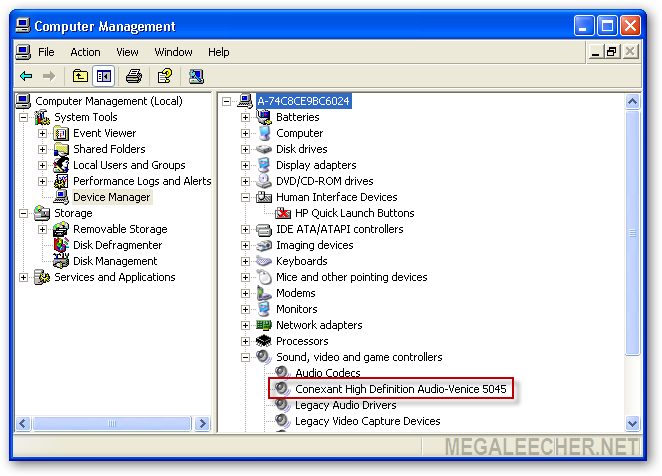
- Click Device Manager from Computer Management screen and navigate to "Sound, video and game controllers", right-click Conexant High Definition Audio or Audio Device on HD entry and select driver update.
- Continue with the wizard selecting "No To Connect - > Install from a list or specific location -> Don't Search, I will choose the driver to install".
- Click Have Disk button.
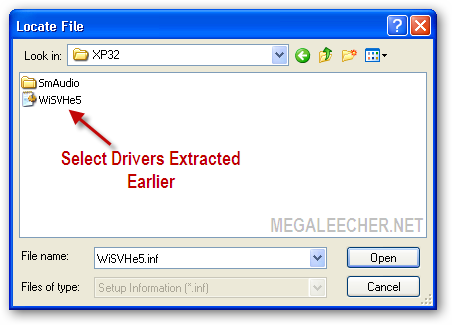
- Browse for the folder downloaded and extracted in Step 2 above and select the driver file WiSVHe5.inf.
- Ignore any warnings and continue installation, your problem should be fixed now.


Sumber : http://www.megaleecher.net/Fixing_Laptop_Microphone_Issues
Complete XP Driver for Compaq Presario V3828AU Notebooks
If you want to install XP in your Compaq Presario V3828AU Notebooks, You may should download all of this Compaq Drivers for XP.
a. for Video Graphics Chipset Driver you need NVIDIA nForce 630M Chipset => download here
b. for Video XP you need NVIDIA GeForce 7150M , can be download it from here
c. for Quick Launch download HP Quick Launch Button that will downloaded from here
d. Ricoh Card Reader Host Control for V3828AU can be found here
e. Wireless LAN driver by Broadcom can be downloaded here.
f. for Ethernet LAN Network Drivers download it from here Realtek RTL8139/810x Family Fast Ethernet, Download it here or download it from here.
After rebooting your laptops,installing another driver
a. Microsoft Universal Audio (MS UAA) Bus Driver for High Defnition Audio download it here.
b. for Sound Audio Driver download from Conexant High Definition Audio Driver here.
c. Data Fax modem requires Conexant HDAUDIO SmartCP drivers. get it here.
d. for Compaq Presario V3828AU Webcam you need Cyberlink YouCam driver.
e. HP Integrated Model for Bluetooth Wireless
gey it free here.
Here short description about Compaq Presario V3828AU notebooks, Powered by AMD Turion 64 X2 Dual Core processor, 1GB of RAM, 160GB of hard drive and it also completed by NVIDIA(R) GeForce Go 7150M graphics.
Bulubebek removal - update 1
Bukan bulu sembarang bulu, bukan donal sembarang donal, tapi sebuah virus yang rajin menyerang komputer-komputer teman-teman ku beberapa minggu ini. Beberapa orang teman yang komputernya yang sempat saya bersihkan secara manual dari virus berukuran 53 kb ini minta diajari. Bukan pelit, namun saya paling gak bisa ngajarin orang. Susah mengungkapkan isi otak lewat kata-kata, mungkin dengan tulisan ini bisa sedikit menyalurkan tips-tips yang mungkin nyangkut dan tak tersalurkan oleh mulut saya dan bisa dijadikan bahan pelajaran untuk yang ingin belajar.
Beberapa bagian dari tulisan ini saya comot dari Kaskus, dan sedikit tambahan redaksi dari saya untuk hal-hal yang dianggap perlu. Dan langkah dibawah bisa juga diterapkan untuk memberantas virus-virus serupa, namun diperlukan sedikit improvisasi dalam memodifikasi langkah-langkah dibawah sesuai dengan karakteristik virus yang akan dibersihkan. Misalnya dalam penentuan ukuran file yang akan di search dan delete, nama dan lokasi file induk virus dan sebagainya,

Virus Donal Bebek dibuat menggunakan bahasa pemrograman Visual Basic dan terdeteksi sebagai VbWorm.QXE. Salah satu ciri khas virus ini adalah mengandung kata “Bulu Bebek”. Bulu Bebek menyembunyikan folder/subfolder pada flash disk dan membut file duplikat sesuai dengan nama folder/subfolder tersebut untuk mengelabui user. Untuk membersihkannya, simak langkah berikut ini:
1. Sebaiknya putuskan komputer yang akan dibersihkan dari jaringan (jika terhubung ke Local Are Network/LAN).
2. Disable “System Restore” untuk sementara selama proses pembersihan berlangsung (jika menggunakan Windows ME/XP).
3. Matikan proses virus yang sedang aktif di memori, untuk mematikan proses virus ini gunakan tools pengganti taks manager seperti process explorer, kemudian matikan proses virus yang mempunyai icon “Folder”. Klik kanan process yang ingin dimatikan, dan klik kill process tree . Proccess Explorer dapat di download DISINI

4. Repair registry Windows yang sudah diubah oleh virus. Untuk mempercepat proses tersebut bisa digunakan plugin dari ANSAV. ANSAV BETA bisa didonlot disini, setelah diekstrak buka program ansav.exe lalu klik menu plugin. buka plugin yang bernama FXregistry dan aktifkan seluruh option box yang ada untuk mengembalikan fungsi windows yang dikacaukan oleh virus. lalu klik OK.

Atau setelah registry (run - regedit) bisa diakses, pastikan string registry dibawah ini telah terhapus:
HKEY_LOCAL_MACHINE\SOFTWARE\Microsoft\Windows\CurrentVersion\Explorer\Advanced\Folder\Hidden\HideFileExt
- CheckedValue=2
- DefaultValue = 2
- UncheckedValue = 2
HKEY_LOCAL_MACHINE\SOFTWARE\Microsoft\Windows\CurrentVersion\Explorer\Advanced\Folder\Hidden\NOHIDDEN
- CheckedValue= 0
- DefaultValue = 0
HKEY_LOCAL_MACHINE\SOFTWARE\Microsoft\Windows\CurrentVersion\Explorer\Advanced\Folder\Hidden\SHOWALL
- CheckedValue= 2
- DefaultValue = 2
HKEY_LOCAL_MACHINE\SOFTWARE\Microsoft\Windows\CurrentVersion\Explorer\Advanced\Folder\Hidden\ShowFullPath
- CheckedValue= 0
- DefaultValue = 0
- UncheckedValue = 0
HKEY_LOCAL_MACHINE\SOFTWARE\Microsoft\Windows\CurrentVersion\Explorer\Advanced\Folder\Hidden\ShowFullPathAddress
- CheckedValue= 0
- DefaultValue = 0
- UncheckedValue = 0
HKEY_LOCAL_MACHINE\SOFTWARE\Microsoft\Windows\CurrentVersion\Explorer\Advanced\Folder\Hidden\SuperHidden
- CheckedValue= 2
- DefaultValue = 2
- UncheckedValue = 2
HKEY_LOCAL_MACHINE\SOFTWARE\Microsoft\Windows\CurrentVersion\Explorer\Advanced\Folder\HideFileExt
- CheckedValue= 1
- DefaultValue = 1
KEY_LOCAL_MACHINE\SOFTWARE\Microsoft\Windows\CurrentVersion\Explorer\Advanced\Folder\Hidden\SuperHidden
- CheckedValue= 0
- DefaultValue = 0
HKEY_CURRENT_USER\Software\Microsoft\Windows\CurrentVersion\Policies\Explorer
- NoFolderOptions
HKEY_CURRENT_USER\Software\Microsoft\Windows\CurrentVersion\Policies\System
- DisableRegistryTools
HKEY_CURRENT_USER\Software\Microsoft\Windows\CurrentVersion\Explorer\Advanced
- Hidden = 2
- HideFileExt = 1
- ShowSuperHidden = 1
HKEY_LOCAL_MACHINE\SOFTWARE\Microsoft\Command Processor
AutoRun = exit
HKEY_CURRENT_USER\Software\Microsoft\Command Processor
AutoRun = exit
HKEY_LOCAL_MACHINE\SOFTWARE\Microsoft\Windows NT\CurrentVersion\Image File Execution Options\SPYXX.EXE
- debugger = TAI BEBEK
5. Cari dan hapus file duplikat yang dibuat oleh virus. Untuk mempercepat proses pencarian sebaiknya gunakan fungsi “Search Windows” dengan terlebih dahulu menampilkan file yang disembunyikan.

Jika Folder Option belum muncul, sebaiknya LogOff komputer terlebih dahulu kemudian tampilkan file yang tersembunyi. Setelah file duplikat ditemukan, hapus file yang mempunyai ciri-ciri:
* Menggunakan icon Folder
* Ukuran file 53 KB
* Ekstensi EXE
* Type File “Application”

Ulangi pencarian untuk ekstensi *.inf (ukuran 1 kb) dan *.ini (ukuran 53 kb), dan pastikan file induk terhapus. Lokasinya adalah sbb:
-
C:\Windows\Script.exe
-
C:\Windows\LSASS.exe
-
C:\Documents and Settings\%user%\autorun.inf
-
C:\Documents and Settings\%user%\bulubebek.ini
-
C:\bulubebek.ini
-
c:\autorun.inf
6. Tampilkan kembali file/folder pada Flash Disk yang sudah disembunyikan. Untuk menampilkan file yang disembunyikan, Anda dapat menggunakan bebarapa tools alternatif seperti Batch File Utility atau dengan menggunakan perintah ATTRIB.
- DOS Bulubebek, CMD
Berikut cara menampilkan file/folder yang disembunyikan dengan menggunakan ATTRIB:
* Klik “Start”
* Klik “Run”
* Ketik “CMD”, kemudian tekan tombol “Enter”
* Pindahkan posisi kursor ke drive Flash Disk (misal FD berada di drive F: ketikkan cd f: dan tekan ENTER)
* Kemudian ketik perintah ATTRIB –s –h –r /s /d kemudian tekan tombol “enter”
lakukan hal yang sama untuk drive-drive lainnya.

Pengembalian attribut file dapat juga dengan menggunakan salah satu plugin ANSAV yaitu Hidden Revealer.
7. Untuk pembersihan optimal dan mencegah infeksi ulang scan, dengan antivirus yang up-to-date dan sudah dapat mendeteksi virus ini.
SELAMAT BERJUANG!!!
(sebagian gambar dan langkah dalam tutorial ini bersumber dari www.vaksin.com dan www.kaskus.us)
Vista to XP Downgrade Compaq/ HP F700/G6000/DV6900/DV6700/DVx7xx/DV9800 Series Laptop
I must warn you. This is for informational purpose only. TSF will not be held liable for any problems that may result in using the following procedures. These procedures may also result in voiding any warranty you may have with HP, Compaq or its affiliates.
I would highly recommend that you make a backup of your Vista OS.
BACKUP ANY DATA YOU WISH TO SAVE!
Imaging the drive (Vista OS) will allow you to return to Vista easily. This program is free and is easy to use.
Drive Image:
http://www.runtime.org/driveimage-xml.htm
You may wish to run EVEREST or PC Wizard to determine the Hardware installed on your laptop prior to installing these drivers. A link to these programs is located under my signature.
You will need a zip program to extract many of these drivers to a folder.
I prefer WIN.RAR here:
http://www.download.com/WinRAR/3000-...-10007677.html
I would also recommend you BURN these drivers to CD for a backup.
I have also included instructions as to how these drivers should be installed. Do not skip around to try and install these drivers. They must be installed in the order given. If you run into a problem STOP and post it to a thread.
Install XP (XP SP2 recomended) to your laptop and select your series!
CHIPSET:
http://www.nvidia.com/object/nforce_...nxp_16.08.html
DO NOT RUN THE SOFTWARE (SETUP EXE FILE). Instead, download the file and extract the files to a folder. Manually install the SM BUS controller and the Coprocessor through the device manager. DO NOT install the LAN driver. Results will be a BSOD.
If the Coprocessor fails to install you may use this driver:
http://www.amd.com/us-en/Processors/..._13118,00.html
It is the 2nd one from the BOTTOM of the list.
Download and install, then REBOOT.
DO NOT install the LAN Driver. The result will be a BSOD!
VIDEO:
http://drivers.softpedia.com/get/GRA...Go-15655.shtml
Download and install, then REBOOT.
LAN:
http://www.nvidia.com/object/nforce_...p2k_14.10.html
DO NOT RUN THE SOFTWARE (SETUP EXE FILE). Instead, download the file and extract the files to a folder. Manually install the LAN Driver through the device manager.
You should beable to get ON-LINEvia your LAN connection. DO a full MS Update. You will need XP SP2. DO NOTinstall SP3 until ALL your drivers are installed and running correctly.
You will also need:
Net. Framework 2.0. This can be downloaded here:
http://www.microsoft.com/downloads/d...displaylang=en
Install and REBOOT.
Once this is done you may proceed:
ATHEROS WLAN:
http://www.atheros.cz/download.php?a...007EG&system=1
Download and run SETUP EXE., then REBOOT.
or
BROADCOM WLAN:
http://h10025.www1.hp.com/ewfrf/wc/g...s&lc=en&dlc=en
Download and run SETUP EXE., then REBOOT.
The Broadcom Wlan is untested as most of these laptops have the Atheros Wlan.
MS UAA:
http://h10025.www1.hp.com/ewfrf/wc/s...3180330&dlc=en
Download and run SETUP EXE., then REBOOT.
AUDIO:
http://www.mediafire.com/?dg0cmmkm4y4
Extract Files to a folder. Run the installer. If it errors upon installation use device Manager.
From Device Manager, right click "Audio Device on HD".
Choose Update driver.
Check no to connect.
Install from a list or specific location.
Don't search I will choose the driver to install.
In the list of common hardware types, scroll down and select Sound, Video, and Game controllers.
Remove the check from "Show Compatible Hardware" and click on "Have Disk".
Next...browse to the unzipped folder and choose the "WiSVHe5.inf".
Ignore XP when it complains.
REBOOT.
MODEM:
http://h10025.www1.hp.com/ewfrf/wc/s...3180330&dlc=en
Extract Files to a folder. Manually install the modem driver through the device manager (Similar to the AUDIO Driver)and REBOOT
The following drivers maybe installed in any order:
CARD READER:
http://h10025.www1.hp.com/ewfrf/wc/g...reg_R1002_USEN
Download and run SETUP EXE., then REBOOT.
QUICK LAUNCH BUTTONS:
http://h10025.www1.hp.com/ewfrf/wc/g...reg_R1002_USEN
Download and run SETUP EXE., then REBOOT.
WEB CAM:
http://h10025.www1.hp.com/ewfrf/wc/g...reg_R1002_USEN
Extract the file to a folder. Manually install the web cam driver through the device manager, then REBOOT.
This link provides additional XP drivers that HP has posted: (Input your exact model number):
http://welcome.hp.com/country/us/en/support.html
Select your particular model for HP XP recommended drivers.
Service Manual Compaq F700 and HP G6000 Series:
http://h10032.www1.hp.com/ctg/Manual/c01295900.pdf
********************************************************
Chipset Driver:
http://www.nvidia.com/object/nforce_...p2k_14.10.html
ONLY install the drivers. DO NOT install Media Shield
REBOOT
Video Driver:
http://drivers.softpedia.com/get/GRA...Go-15655.shtml
Install and REBOOT
If it does not install using the exe file then do a manual install through the device manager as follows:
Extract Files to a folder. Run the installer. If it errors upon installation use the device Manager.
From Device Manager, right click "VIDEO CONTROLLER (VGA COMPATIBLE)".
Choose Update driver.
Check no to connect.
Install from a list or specific location.
Don't search I will choose the driver to install.
In the list of common hardware types, scroll down and select Sound, Video, and Game controllers.
Remove the check from "Show Compatible Hardware" and click on "Have Disk".
Next...browse to the Extracted folder you made
See if windows will pick up the driver.
You should beable to get ON-LINE via your LAN connection. Do a full MS Update. You will need XP SP2. DO NOT install SP3 until ALL your drivers are installed and running correctly.
You will also need:
NET Framework 2.0:
http://www.microsoft.com/downloads/d...displaylang=en
Install and REBOOT
Windows Installer 3.1: Should have been done when you did MS Update, but here it is just incase.
http://www.microsoft.com/downloads/d...displaylang=en
Install and REBOOT
Once this is done you may proceed:
Wireless Lan:
Atheros:
http://www.mediafire.com/?cfdzj3eaizt
or
http://www.atheros.cz/download.php?a...006EG&system=1
(The above is a newer version)
Install Driver Only and REBOOT
or
Broadcom:
http://h10025.www1.hp.com/ewfrf/wc/g...reg_R1002_USEN
Install and REBOOT
or
Intel:
http://h20000.www2.hp.com/bizsupport...tem=ob-59458-1
Install and REBOOT
UAA Driver: Must be installed before your Audio driver.
http://h10025.www1.hp.com/ewfrf/wc/s...roduct=3224049
or
http://www.mediafire.com/?4ben9zlesng
Install and REBOOT
Audio:
http://www.mediafire.com/?lgiwcooxdkk
Extract Files to a folder. Run the installer. If it errors upon installation use device Manager.
From Device Manager, right click "Audio Device on HD".
Choose Update driver.
Check no to connect.
Install from a list or specific location.
Don't search I will choose the driver to install.
In the list of common hardware types, scroll down and select Sound, Video, and Game controllers.
Remove the check from "Show Compatible Hardware" and click on "Have Disk".
Next...browse to the unzipped folder and choose the "WiSVHe5.inf".
Ignore XP when it complains.
REBOOT.
MODEM:
http://h10025.www1.hp.com/ewfrf/wc/s...3180330&dlc=en
or
http://www.mediafire.com/?dg0cmmkm4y4
Extract Files to a folder. Manually install the modem driver through the device manager (Similar to the AUDIO Driver).
Install and REBOOT
AMD Processor Update:
http://h10025.www1.hp.com/ewfrf/wc/s...roduct=3224049
Install and REBOOT
Card Reader:
http://h10025.www1.hp.com/ewfrf/wc/g...reg_R1002_USEN
Download and run SETUP EXE., then REBOOT.
This link provides additional XP drivers that HP has posted: (Input your exact model number):
http://welcome.hp.com/country/us/en/support.html
Select your particular model for HP XP recommended drivers.
1394 Controller: This is Only if you have an error in the Device Manager that shows OHCI COMPLIANT IEEE 1394 HOST CONTROLLER.
This is not a driver issue it is a XP/BIOS incompatibility issue.
Most people have resolved this issue by DOWNGRADING the Bios to F.28:
http://h10025.www1.hp.com/ewfrf/wc/s...740559&lang=en
If you choose this option you do at your own RISK!
Service Manual:Based on a DV6915NR Laptop
http://h10032.www1.hp.com/ctg/Manual/c01295877.pdf
********************************************************
Chipset driver: Install and REBOOT. If XP complains extract the file to a folder and install the SM Bus Controller and Ethernet Controller through the Device Manager.
http://www.nvidia.com/object/nforce_...p2k_14.10.html
Video Driver: Install and REBOOT.
http://drivers.softpedia.com/get/GRA...Go-15655.shtml
You should beable to get ON-LINE via your LAN connection. DO a full MS Update. You will need XP SP2. DO NOTinstall SP3 until ALL your drivers are installed and running correctly.
You will also need:
Net. Framework 2.0. This can be downloaded here:
http://www.microsoft.com/downloads/d...displaylang=en
Install and REBOOT.
Once this is done you may proceed:
Wireless Lan: Extract the file to a folder and install the Driver only and REBOOT
Atheros:
http://www.mediafire.com/?cfdzj3eaizt
or
http://www.atheros.cz/download.php?a...006EG&system=1
(The above is a newer version)
Broadcom:
http://h20000.www2.hp.com/bizsupport...reg_R1002_USEN
UAA Driver: Install and REBOOT
http://h10025.www1.hp.com/ewfrf/wc/s...roduct=3224049
Audio Driver:
http://www.mediafire.com/?dg0cmmkm4y4
Extract Files to a folder. Run the installer. If it errors upon installation use device Manager.
From Device Manager, right click "Audio Device on HD".
Choose Update driver.
Check no to connect.
Install from a list or specific location.
Don't search I will choose the driver to install.
In the list of common hardware types, scroll down and select Sound, Video, and Game controllers.
Remove the check from "Show Compatible Hardware" and click on "Have Disk".
Next...browse to the unzipped folder and choose the "WiSVHe5.inf".
Ignore XP when it complains. REBOOT
Modem:Install and REBOOT
http://h10025.www1.hp.com/ewfrf/wc/s...3180330&dlc=en
AMD Processor Update: Install and REBOOT
http://h10025.www1.hp.com/ewfrf/wc/s...roduct=3224049
The following drivers can be installed in the usual manner.
Depending on model accessories
Some of these Drivers may also work on other models
Win DVD: Install before the Quick Launch Buttons and REBOOT
http://h20000.www2.hp.com/bizsupport...5&mode=4&idx=1
Quick Launch Buttons:
http://h10025.www1.hp.com/ewfrf/wc/s...roduct=3759598
Card Reader Driver:
http://h10025.www1.hp.com/ewfrf/wc/s...roduct=3224049
Touch Pad Driver:
http://h10025.www1.hp.com/ewfrf/wc/s...roduct=3224049
Webcam:
1.3 MegaPixel (MP)
http://h10025.www1.hp.com/ewfrf/wc/s...roduct=3224049
or
HP Webcam:
http://h10025.www1.hp.com/ewfrf/wc/s...roduct=3224049
Blue Tooth:
http://h10025.www1.hp.com/ewfrf/wc/g...s&lc=en&dlc=en
Bioscrypt Verisoft Manager (for finger print reader):
http://h10025.www1.hp.com/ewfrf/wc/g...reg_R1002_USEN
Finger Print Driver:
http://h10025.www1.hp.com/ewfrf/wc/s...s=2093&lang=en
This link provides additional XP drivers that HP has posted: (Input your exact model number):
http://welcome.hp.com/country/us/en/support.html
Select your particular model for HP XP recommended drivers.
Service Manual:Based on a DV9800CTO Laptop
http://h10032.www1.hp.com/ctg/Manual/c01295898.pdf
Hopefully when you are done, you will not have any errors in the device manager. If you have issues with the installation, please PM me for further instructions. I wish not to turn this into a thread. It is for informational purpose only.
I wish to thank BROW96 and ERLISE for their help and input through the various threads that they assisted me with.
I would also like to thank Linderman, Eneles, Mattlock, Triggerfinger and Dai for their input and making this POST possible.
GOOD LUCK!
Bill
Quick links:
laptop nvidia m drivers
http://www.laptopvideo2go.com/drivers
UAA (KB88811) Driver:
http://www-307.ibm.com/pc/support/si...cid=MIGR-65456
or
http://support.microsoft.com/kb/888111/en-us
or
http://geekswithblogs.net/lorint/arc.../11/81540.aspx
Known Vista to XP downgrade Links:
Sony Vaio:
Sony Vaio VGN-N2, VGN-N3 Series Windows XP Downgrade:
http://www.sony-asia.com/support/dow...subpage=detail
or
http://www.css.ap.sony.com/vaio/Vist...odel=VGN-N27GH
Manufactures Quick Links (Support/Drivers):
HP
http://welcome.hp-ww.com/country/us/en/support.html
ESUPPORT
http://esupport.sony.com/perl/select-system.pl
ACER
http://support.acer-euro.com/drivers/index.html
TOSHIBA
http://www.csd.toshiba.com/cgi-bin/t...su_sc_home.jsp
or
http://www.csd.toshiba.com/cgi-bin/t...dItemList.jsp?
GATEWAY
http://support.gateway.com/support/drivers/dlcenter.asp
IBM LENOVO
http://www-307.ibm.com/pc/support/si....do?country=us
DELL
http://support.dell.com/support/downloads/index.aspx
sumber : http://www.techsupport.....x-dv9800-series-laptop.html