Warisan2u VIP card....

Dapatkan kad VIP Warisan2u secara percuma apabila anda servis / format komputer anda disini. Tawaran ini sah sehingga 31 / 12 / 2009.
Selepas 31/12/2009, untuk memohon kad VIP Warisan2u, bayaran dikenakan sebanyak RM10.00 setahun. Dengan kad VIP Warisan2u, anda layak untuk mendapat potongan caj format komputer sehingga 30%. Daftarlah sekarang…..
Want more PC speed? Learn How to Speed Up PC Performance with 4 expert tips!
TOP 4 Ways to Speed Up PC Performance
1. Use a Registry Cleaner.
This will free up resources show you how to increase PC speed with a few clicks. This is one of the best answers to "how to speed up PC performance?". These easy point and click programs also defrag your hard drive and remove spyware. All that with the push of a button weekly will keep your computer running at it’s original PC speed specs. There are dozens of different registry cleaners software and registry cleaner tools available for use with the registry, However only about 5 have really proven themselves based on user support. One of the industry leaders is RegFix. It was last year's Most Popular PC Repair product. RegFix is the easiest and best. It’s easy to get scammed with inferior products so it’s best to choose a registry cleaner with an excellent record.For an in depth comparison of the best registry cleaner on the market, click this link.
2. Defrag your hard drive
Over time, the data on your hard drive gets scattered. De-fragmenting your hard drive puts your data back into sequential order, making it easier for Windows to access it. As a result, the performance of your computer will improve. An excellent registry cleaner will allow show you how to speed up your PC using defrag techniques. For Easy Steps to Defrag your PC Click Here!. Remember that the hard drive is the cornerstone of your system. If it is in trouble your system can collapse.
Tips to Speed Up Your Hard Drive Click Here! If you are interested in speed up your computer on the net. Click the image below. If not read on.
These nasty little worms can wreak havoc on your PC speed. Detecting and cleaning viruses is an excellent way to improve your system's performance and increase PC speed. Registry cleaners will help to remove these buggers also!To Learn more a about the best Spyware removal programs on the maket, Click this link
4. Adjust your computer’s Visual effects
Windows provides a number of resource hogging and interesting visual effects like animated windows and fading menus. These effects, however, can slow down your computer and kill your PC speed. By Altering your preferences and performance needs you can learn how to increase PC Speed in seconds. This is one of Microsoft's tips on how to increase PC speed and performance.Visit Adjust Visual Performance page for assistance.
A excellent registry cleaner can perform all but number 4. If you are serious about learning how to speed up PC performance. Get a registry cleaner and let it do most of the work. There are lot of registry cleaner choices on the market. Learn how to increase PC speed organically and don't get scammed into spending thousands for a new PC.
Bonus Tips
Use a Window's Optimization Tool
Using a Windows Optimization tool can give you a big boost in the the performance department. This takes the work out of your regular maintenance of organizing files, defragging your hard drive and other optimization task. For Windows Optimization Tools, Click Here!Manage Your Startups
By managing your Windows startup programs and services you can free of vital CPU resources that can re-allocated your PC performance. This is a quick and easy tweak learn how to speed up PC CPU access time. Click Here to Learn how to speed up PC performance by managing your Startups.
Clean Windows Temp Files
Your Windows Temp files can swell to enormous sizes. This will eat up free space that could be allocated for applications you would like to use. Learn how to clean up your PC of useless files
sumber : http://www.delete-computer-history.com
How to Block a Website
Internet Explorer version 5 and later offer the ability for heighten security and privacy. You can block a site by following the directions below:
1. Load your Internet explorer
2. Click Tools
3. Click Internet Options
4. Click the Privacy tab
5. Under the Privacy window, Click Sites
6. Type in the site address that you want to Block and Click OK. Remember this technique only blocks on one site at a time. Parental control software will allow you to block multiple sites and categories.
To Learn How to Block a Website with parental control software. Click Here!


Here are alternate instructions to block a website using Internet Explorer.
Tools ->Internet Options->Security->Restricted sites->Sites->Type in the site address and Click ADD then click OK
This action will require you to edit your Host file. Your host file is a computer file used to store information on where to find a node on a computer network. For more a more detailed description. Check out this link Host File Description Link
In Windows XP
1. Click Start->All Programs->Accessories->Command Prompt.
2. Click Command Prompt This will open a DOS command window.
3. Type: notepad C:/Windows/System32/drivers/etc/hosts
4. Locate the line 127.0.0.1 localhost
5. To block the website google.com for example, just add this text under 127.0.0.1 localhost:
127.0.0.1 google.com
127.0.0.1 www.google.com
You can add as many sites any site, However you will need to prefix it with "127.0.0.1".
6. Save the file
Google will now be blocked in all web browser. This is an advanced but easy method on how to blow a website.


Sunyi tapi busy gak...
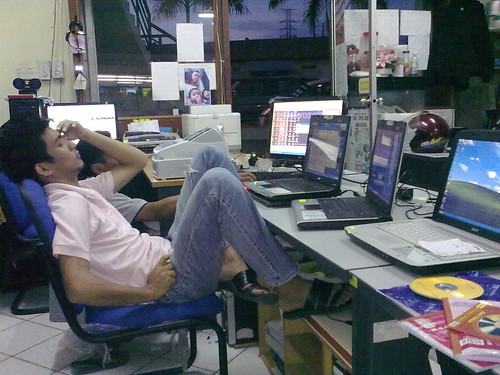 Sunyi la skit sebab student UMS dah cuti. Tapi masih ada lagi yang tak balik sebab kena siapkan tesis dan projek last semester. WAlaupun sunyi tapi kami di Warisan2u.Com tetap sibuk jugak. Masih banyak PC dan laptop yang perlu diservis.
Terima kasih atas sokongan anda semua. Kepercayaan yang diberikan kepada kami tak adakn kamu lupakan. Kami berusaha untuk meningkatkan lagi kualiti perkhidmatan kami agar anda semua puas hati dan selesa dengan kami.
Compaq CD/DVD Driver For Sales...
Senarai driver yang ada dalam simpanan kami :
Untuk Windows XP
- Compaq Presario V3628TU / V3658TU
- Compaq Presario V3839TU
- Compaq Presario V3134AU
- Compaq Presario V3791TU
- Compaq Presario V3751AU
- Compaq Presario V3000
- Compaq Presario F762AU
- Compaq Presario V3614AU
- Compaq Presario V3415AU
- Compaq Presario V3828AU
- Compaq Presario F731AU
- Compaq Presario CQ40-401AU
- Compaq Presario CQ40-310AU
- Compaq Presario CQ50-107TU
- Compaq Presario C767TU
Cara Pembayaran
Itu senang sahaja. Anda boleh membuat pembayaran melalui pindahan akaun, wang pos atau boleh juga menggunakan cek. Dibawah ini adalah senarai bank-bank dan nombor akaun untuk memudahkan anda membuat pembayaran.Maybank :
Mohd Sham Zurinda Bin Hassan
No. Akaun : 160072405611
EON Bank :
Mohd Sham Zurinda Hassan
No. Akaun : 0591-21-000884-4
@
Warisan2u.Com Enterprise
No. Akaun : 0591-11-001157-5
CIMB Bank :
Mohd Sham Zurinda Hassan
No Akaun : 1008-0002873-20-6
Selepas pembayaran dibuat, sila SMS kepada kami di 012-8200278 / 013-8655684
atau e-mel kepada :
rinda06@streamyx.com
Pembayaran menggunakan cek atau wang pos boleh ditulis atas nama Warisan2u.Com Enterprise, No. Akaun : 0591-11-001157-5 dan dihantar melalui pos express kepada kami. Penghantaran akan dibuat selepas cek tersebut sudah ditunaikan ( clear ).
Semua penghantaran akan dibuat melalui Pos Express atau Pos Laju dalam masa 3 - 7 hari mengikut hari bekerja. Semua surat - menyurat boleh di alamatkan kepada ;
Warisan2u.Com Enterprise,
Lot 16, Urban Minimall, Taman Indah Permai,
88450 Kota Kinabalu, Sabah.
Attn : En. Mohd Sham Zurinda Bin Hassan
PERHATIAN !!!
- Wang yang sudah dibayar tidak akan dipulangkan sekiranya anda membatalkan tempahan anda.
- CD yang sudah dibeli tidak boleh dipulangkan semula.
- Kami tidak akan bertanggungjawab sekiranya driver yang terdapat didalam CD tersebut tidak memenuhi kehendak hardware komputer / laptop anda.
- Semua penghantaran menggunakan POS LAJU dan diuruskan dalam masa 5 hari bekerja.
- Kami tidak akan bertanggungjawab sekirangnya berlaku kelewatan penghantaran disebabkan oleh perkhidmatan pos atau alamat yang tidak tepat.
- Penghantaran akan dibuat setelah kami menerima bayaran penuh dan diberikan alamat penghantaran yang lengkap.
Compaq CQ40-401AU XP Drivers
So i need u to tell me the progress and inform which driver didn't work
Install .Net Framework before others:
http://tinyurl.com/758p8
ATI Radeon HD 3200 Graphics/Video Driver
here:
http://game.amd.com/us-en/drivers_catalyst.aspx?p=xp/integrated-xp
MS UAA (required with a reboot before Audio driver)
here:
ftp://ftp.hp.com/pub/softpaq/sp33501-34000/sp33867.exe
IDT High-Definition Audio CODEC Driver
ftp://ftp.hp.com/pub/softpaq/sp41001-41500/sp41479.exe
or
ftp://ftp.hp.com/pub/softpaq/sp39501-40000/SP39671.exe
or try this new driver
ftp://ftp.hp.com/pub/softpaq/sp40001-40500/sp40220.exe
High-Definition Audio (HDA) Modem Installer and Driver
ftp://ftp.hp.com/pub/softpaq/sp39501-40000/sp39545.exe
Windows Installer 3.1(required before wireless)
here:
http://tinyurl.com/9cg2y
If you have Intel PRO/Wireless Drivers
here:
ftp://ftp.hp.com/pub/softpaq/sp38501-39000/sp38890.exe
if you have Broadcom Wireless
here:
ftp://ftp.hp.com/pub/softpaq/sp39501-40000/sp39243.exe
Realtek RTL8102E Family PCI-E Fast Ethernet NIC
here:
http://tinyurl.com/4ssd97
JMB38X Card Reader Host Controller Driver
ftp://ftp.hp.com/pub/softpaq/sp40001-40500/sp40221.exe
ENE CIR Receiver (vista version)
http://tc.versiontracker.com/product/redir/lid/1508335/CIR.zip
for HDMI Audio
ftp://202.65.194.212/pc/audio/HDMI-R203.exe
ALPS Touchpad Driver
ftp://ftp.hp.com/pub/softpaq/sp31001-31500/sp31075.exe
or try this new driver (not sure it will work)
ftp://ftp.hp.com/pub/softpaq/sp38501-39000/sp38629.exe
HP Quick Launch Buttons
ftp://ftp.hp.com/pub/softpaq/sp40001-40500/sp40139.exe
If you have Bluetooth,
The HP Integrated Module is your Bluetooth Wireless
here:
ftp://ftp.hp.com/pub/softpaq/sp38501-39000/sp38983.exe
If you had for 7 unknown devices (buttons drivers)here:
http://www.mediafire.com/?nnnzjmojcjy
Installation --> right click machine.inf, choose install.
You may need to update your BIOS to solve IDT sound driver problem.
You may found all of your BIOS versions
here:
http://tinyurl.com/5lryna
HP Compaq Presario C700 series Notebook PC Windows XP driver
HP releases a lot of model in C700 series Notebook PC. There are C700 CTO, C700EM, C700ET
C700LA, C700T CTO, C700XX, C701EA, C701EM, C701LA, C701TU, C701XX, C702LA, C702TU, C703LA, C703TU, C704TU, C705LA, C705TU, C706NR, C706TU, C707LA, C707TU, C708LA, C708TU, C709LA, C709TU, C710BR, C710ED, C710EE, C710EF, C710EL, C710EM, C710EN, C710TU, C711EF, C711EM, C711TU, C712NR, C712TU, C713NR, C713TU, C714NR, C714TU, C715BR, C715NR, C715TU, C716TU, C717NR, C717TU, C718TU, C719TU, C720BR, C720ES, C721TU, C722TU, C725BR, C727US, C730 CTO, C730BR, C730EE, C730EL, C730ES, C730ET, C731EM, C731TU, C732EF, C732EM, C732ES, C732TU, C733TU, C734TU, C735BR, C735ED, C735EE, C735EF, C735EL, C735EM, C735ET, C735TU, C736TU, C737BR, C737EL, C737TU, C738TU, C739TU, C740ED, C740EE, C740EG, C740EL, C740EM, C740ES, C740ET, C740TU, C741TU, C742EA, C742EM, C742ES, C742TU, C743TU, C744TU, C745EE, C745EF, C745EG, C745EL, C745ES, C745TU, C746TU, C747TU, C748TU, C749TU, C750ED, C750EF, C750EL, C750EM, C750ES, C750LA, C750TU, C751LA, C751NR, C751TU, C752LA, C752TU, C753TU, C754CA, C754TU, C755BR, C755EF, C755EL, C755ES, C755TU, C756CA, C756ES, C757CA, C757EA, C757EL, C757EM, C757LA, C758CA, C758LA, C759LA, C760ED, C760EL, C760EM, C760ES, C760ET, C760LA, C761TU, C762NR, C762TU, C763TU, C764NR, C764TU, C765BR, C765EL, C765EM, C765ET, C765TU, C766TU, C767TU, C768CA, C768TU, C769TU, C769US, C770ED, C770EE, C770EF, C770EG, C770EL, C770EM, C770ES, C770ET, C770TU, C771TU, C772EM, C772TU, C773EM, C773TU, C774TU, C775EL, C775EM, C775TU, C776TU, C777TU, C778TU, C779TU, C780EE, C780EF, C780EL, C780TU, C782TU…
Wow… There are really a lot of model in C700 series. 
Download all the HP Compaq Presario C700 series Notebook PC required driver for Windows XP here… Tested with C749TU, C769TU… More to come… 
Chipset
Intel Chipset Installation Utility for ICH8
Audio
Microsoft UAA driver (install first)
Conexant High-Definition Audio Driver (install later. Use ‘have disk’ method to install. Note - internal mic not working)
Graphics
Mobile Intel 965 Express Chipset Family Video/Graphics Driver
Keyboard, Mouse and Input Devices
HP Quick Launch Buttons Driver
Alps Touch Pad Driver
Webcam
webcam driver
Network
Realtek RTL8139/810x Family Fast Ethernet NIC Driver
Wireless
Intel PRO Wireless 3945 802.11a/b/g or 802.11b/g
Broadcom 802.11a/b/g
Atheros AR2425 WLAN b/g
Modem
Conexant HDAUDIO Soft Data Fax Modem with SmartCP Driver (Use ‘have disk’ method to install.)
source : http://www.jayceooi.com/2008/04/15/hp-compaq-presario...
HP Compaq CQ40-115AU xp driver..
Short description about HP Compaq CQ40-115AU, 2.0Ghz of AMD Turion X2 RM-70, 160GB of harddrive, 1Gb of memory RAM, ATi HD3200 Graphics card video, WiFi, Webcam, DVd Writer super multi, 14.1 inch WXGA with FreeDOS.
If you want to install Microsoft Windows Xp to this machine, follow this simpe step.
b. Download and install .Net Framework from here
c. Install ATI Radeon HD3200 Video Graphics Driver here
d. Install Microsoft UAA from here
e. Install IDT High-Definition CODEC Audio Driver here => Update your Audio Device on High Definition Bus through Device Manager.
f. Realtek RTL8102E Family PCI-E Fast Ethernet NIC here
g. ALPS Touchpad Driver here
h. For Modem, Card Reader or Quick Launch you can use your Microsoft Windows Vista Driver or can be downloaded here
Uninstall the current video graphic, use Catalyst software suite that would install chipset, video graphic and other.
Install .Net Framework before Catalyst Software Suite, here
Catalyst Software Suite, here
Broadcom Wireless, hereInstalling Audio is the most difficult part, since BIOS incompatibility.
Install MS-UAA first, here
IDT High-Definition Audio CODEC Driver,
an update version from Microsoft Update Catalog, here
HP IDT vista driver, some user reported it also works with XP, here
Some of CQ40 users need to update their BIOS to solve Audio problem.
You may found all versions of your BIOS, here
Good luck...
source : http://h30434.www3.hp.....board.id=OS&thread.id=819Downgrading Vista to XP Compaq Presario CQ40-109TU
I'm not in the same impression as you for Vista, in some points, I found VISTA has its own advantages.
Since your model was built for VISTA, some of the functions may not work i.e brightness control (Fn +F7 or F8)
However, you are not alone, many CQ40 has downgraded their notebook.
If you wish for XP drivers try the following steps.
_____
Make your Vista Recovery cd/dvd if you haven't yet, found out here
Your model needs ICH9 sata driver to be sliptreamed in XP CD installer. If you did it right, you'll pass BSOD error.
Use Nlite to sliptream ICH9 sata driver.
A good guide to sliptream sata driver, here
Note: do NOT use sata driver from that guide, your sata driver is ICH9 given below.
ICH9 sata driver,
The driver is located in iaAHCI.inf and is called ICH9M-E/M SATA AHCI Controller, here
Nlite download, here
Some suggestions to avoid problems while installing XP:
1. Try NOT slipstream all of sata drivers, use only ICH9 --> ICH9M-E/M SATA AHCI Controller
2. Use XP-SP2, a lot more easy to use since many of XP drivers were built based on XP-SP2.
3. Burn XP installer slowly and not using the maximum speed, sometimes it create errors
4. Choose a reputable CD media, not the cheap one.
Installing Audio was the most difficult part, since BIOS incompatibility.
Please update your BIOS before installing MS-UAA, at least to F.12, here
F.24 is the latest BIOS up to this date.
____
Drivers for CQ40-109TU
Intel Chipset,(install and reboot before other drivers), here
Install MS-UAA before Intel graphics (include HDMI sound) and IDT sound drivers , here
Intel Graphic driver, here
IDT High-Definition Audio CODEC Driver, here
High-Definition Audio (HDA) Modem Installer and Driver, here
Broadcom Wireless, here
Realtek RTL8102E Family PCI-E Fast Ethernet NIC, here
JMB38X Card Reader Host Controller Driver, here
ENE CIR Receiver (your Vista driver), here
or if it does not work try Vista driver verified from Intel, here
ALPS Touchpad Driver, here
.Net Framework(required before HP Quick Launch Buttons), here
HP Quick Lauch Buttons, here
If you had Bluetooth, here
If you had for 7 unknown devices (buttons drivers), here
Do manual installation
Go to device manager, right click unknown device,
Choose to update driver, No to connect,
Choose install from a list or specific location, Don't search, Have disk,
Browse to the location of machine.inf.
Do it for the rest of unknown devices
Good luck
Source : http://h30434.www3.hp.com/psg/board/message....Compaq Presario CQ60-101TX Windows XP Driver
CQ60-101TX Drivers for windows XP
Intel Chipset,(install and reboot before other drivers):
http://tinyurl.com/54r6dt
if you have Nvidia video graphics
NVIDIA GeForce 9200
Nvidia ForceWare X 177.98 for Windows XP/2K 32bit, here:
http://tinyurl.com/6dz435
3-step process to install:
1. Download driver, double click and select extract,
2. Download modded INF and replace original INF in extracted folder,
3. Install & reboot.
MS-UAA (required with a reboot before intel Video driver and Conexant Audio driver)
here:
ftp://ftp.hp.com/pub/softpaq/sp33501-34000/sp33867.exe
if you have Intel graphics
Mobile Intel 4 Series Express Chipset Family Graphics
http://tinyurl.com/48lunj
Conexant SmartAudio 221
here:
http://www.mediafire.com/?dg0cmmkm4y4
Use this for audio. Unzip to a folder.
Run installer. if it errors use Device Manager.
From Device Manager,right click "Audio Device on HD",choose Update driver,
No to connect,
Install from a list or specific location,
Select Don't Search, I will choose the driver to install,
For the Hardware Type select 'Show All Devices'
Remove the check from "Show Compatible Hardware" and click on "Have Disk".
Next...browse to the unzipped folder and choose the "WiSVHe5.inf".
Ignore XP when it complains.
Reboot.
Conexant HDAUDIO Soft Data Fax Modem with SmartCP Driver
ftp://ftp.hp.com/pub/softpaq/sp33501-34000/sp33839.exe
if you have Atheros Wireless driver
here (your VISTA driver):
ftp://ftp.hp.com/pub/softpaq/sp39001-39500/sp39403.exe
or if it does not work try here:
http://www.megaupload.com/?d=P8I57N0S
if you have intel wireless
here:
Intel PRO/Wireless Drivers
ftp://ftp.hp.com/pub/softpaq/sp38501-39000/sp38890.exe
if you have Broadcom Wireless
here:
ftp://ftp.hp.com/pub/softpaq/sp39501-40000/sp39912.exe
Realtek usb 2.0 Card reader:
http://tinyurl.com/2bj95k
Realtek RTL8101E Family PCI-E Fast Ethernet NIC Driver
http://tinyurl.com/4ssd97
Synaptics Touchpad
ftp://ftp.hp.com/pub/softpaq/sp37001-37500/sp37065.exe
.Net Framework(before Quick Launch):
http://tinyurl.com/758p8
HP Quick Launch Buttons
ftp://ftp.hp.com/pub/softpaq/sp40001-40500/sp40139.exe
If you have Bluetooth,
The HP Integrated Module is your Bluetooth Wireless
here:
ftp://ftp.hp.com/pub/softpaq/sp38501-39000/sp38983.exe
If you had for 7 unknown devices (buttons drivers)here:
http://www.mediafire.com/?nnnzjmojcjy
Compaq Presario CQ60-150EM Windows XP Driver
Intel Chipset,(install and reboot before other drivers):
http://tinyurl.com/54r6dt
if you have Nvidia video graphics
NVIDIA GeForce 9200
Nvidia ForceWare X 177.98 for Windows XP/2K 32bit, here:
http://tinyurl.com/6dz435
3-step process to install:
1. Download driver, double click and select extract,
2. Download modded INF and replace original INF in extracted folder,
3. Install & reboot.
MS-UAA (required with a reboot before intel Video and Audio driver)
here:
ftp://ftp.hp.com/pub/softpaq/sp33501-34000/sp33867.exe
if you have intel graphics
Mobile Intel 4 Series Express Chipset Family Graphics
http://tinyurl.com/48lunj
Conexant SmartAudio 221
here:
http://www.mediafire.com/?dg0cmmkm4y4
Use this for audio. Unzip to a folder.
Run installer. if it errors use Device Manager.
From Device Manager,right click "Audio Device on HD",choose Update driver,
No to connect,
Install from a list or specific location,
Select Don't Search, I will choose the driver to install,
For the Hardware Type select 'Show All Devices'
Remove the check from "Show Compatible Hardware" and click on "Have Disk".
Next...browse to the unzipped folder and choose the "WiSVHe5.inf".
Ignore XP when it complains.
Reboot.
Conexant HDAUDIO Soft Data Fax Modem with SmartCP Driver
ftp://ftp.hp.com/pub/softpaq/sp33501-34000/sp33839.exe
if you have Atheros Wireless driver
here (your VISTA driver):
ftp://ftp.hp.com/pub/softpaq/sp39001-39500/sp39403.exe
or if it does not work try here:
http://www.megaupload.com/?d=P8I57N0S
if you have intel wireless
here:
Intel PRO/Wireless Drivers
ftp://ftp.hp.com/pub/softpaq/sp38501-39000/sp38890.exe
if you have Broadcom Wireless
here:
ftp://ftp.hp.com/pub/softpaq/sp39501-40000/sp39912.exe
Realtek usb 2.0 Card reader:
http://tinyurl.com/2bj95k
Realtek RTL8101E Family PCI-E Fast Ethernet NIC Drive
http://tinyurl.com/4ssd97
Synaptics Touchpad
ftp://ftp.hp.com/pub/softpaq/sp37001-37500/sp37065.exe
.Net Framework(before Quick Launch):
http://tinyurl.com/758p8
HP Quick Launch Buttons
ftp://ftp.hp.com/pub/softpaq/sp40001-40500/sp40139.exe
If you have Bluetooth,
The HP Integrated Module is your Bluetooth Wireless
here:
ftp://ftp.hp.com/pub/softpaq/sp38501-39000/sp38983.exe
If you had for 7 unknown devices (buttons drivers)here:
http://www.mediafire.com/?nnnzjmojcjy
Installation --> right click machine.inf, choose install.
Compaq Presario CQ70-120US XP Drivers
Intel Chipset,(install and reboot before other drivers):
http://tinyurl.com/54r6dt
if you have Nvidia video graphics
NVIDIA GeForce 9200
Nvidia ForceWare X 177.98 for Windows XP/2K 32bit, here:
http://tinyurl.com/6dz435
3-step process to install:
1. Download driver, double click and select extract,
2. Download modded INF and replace original INF in extracted folder,
3. Install & reboot.
or you may try other versions, joint their forum for further details
MS-UAA (required with a reboot before intel Video and Audio driver)
here:
ftp://ftp.hp.com/pub/softpaq/sp33501-34000/sp33867.exe
if you have intel graphics
Mobile Intel 4 Series Express Chipset Family Graphics
win2k_xp1437.exe
http://tinyurl.com/48lunj
Conexant SmartAudio 221
here:
http://www.mediafire.com/?dg0cmmkm4y4
Use this for audio. Unzip to a folder.
Run installer. if it errors use Device Manager.
From Device Manager,right click "Audio Device on HD",choose Update driver,
No to connect,
Install from a list or specific location,
Select Don't Search, I will choose the driver to install,
For the Hardware Type select 'Show All Devices'
Remove the check from "Show Compatible Hardware" and click on "Have Disk".
Next...browse to the unzipped folder and choose the "WiSVHe5.inf".
Ignore XP when it complains.
Reboot.
Conexant HDAUDIO Soft Data Fax Modem with SmartCP Driver
ftp://ftp.hp.com/pub/softpaq/sp33501-34000/sp33839.exe
if you have Atheros Wireless driver
here (your VISTA driver):
ftp://ftp.hp.com/pub/softpaq/sp39001-39500/sp39403.exe
or if it does not work try here:
http://www.megaupload.com/?d=P8I57N0S
if you have intel wireless
here:
Intel PRO/Wireless Drivers
ftp://ftp.hp.com/pub/softpaq/sp38501-39000/sp38890.exe
if you have Broadcom Wireless
here:
ftp://ftp.hp.com/pub/softpaq/sp39501-40000/sp39912.exe
Realtek usb 2.0 Card reader:
http://tinyurl.com/2bj95k
Realtek RTL8101E Family PCI-E Fast Ethernet NIC Driver
http://tinyurl.com/4ssd97
Synaptics Touchpad
ftp://ftp.hp.com/pub/softpaq/sp37001-37500/sp37065.exe
.Net Framework(before Quick Launch):
http://tinyurl.com/758p8
HP Quick Launch Buttons
ftp://ftp.hp.com/pub/softpaq/sp40001-40500/sp40139.exe
If you have Bluetooth,
The HP Integrated Module is your Bluetooth Wireless
here:
ftp://ftp.hp.com/pub/softpaq/sp38501-39000/sp38983.exe
If you had for 7 unknown devices (buttons drivers)here:
http://www.mediafire.com/?nnnzjmojcjy
Compaq Presario CQ50-108 CA xp Drivers
Nvidia Chipset,install and on reboot select/choose ONLY drivers_no mediashield:
http://www.nvidia.com/object/nforce_730a_710a_winxp_18.11.html
Nvidia Graphics:
http://www.laptopvideo2go.com/forum/index.php?showtopic=18338
==================
MS UAA(required with a reboot before Conexant):
http://www.mediafire.com/?4ben9zlesng
Conexant SmartAudio 221:
http://www.mediafire.com/?dg0cmmkm4y4
Unzip to a folder..make note of location.
From Device Manager,right click "Audio Device on High Def Bus",choose Update driver,
No to connect,
Install from a list or specific location,
Select Don't Search, I will choose the driver to install,
For the Hardware Type select 'Show All Devices'
Remove the check from "Show Compatible Hardware" and click on "Have Disk".
Next...browse to the unzipped folder and choose the "WiSVHe5.inf".
Ignore XP when it complains.
Reboot.
=================
.Net Framework(before Q.L.):
http://tinyurl.com/758p8
HP Quick Launch:
ftp://ftp.hp.com/pub/softpaq/sp39001-39500/sp39425.exe
Modem:
ftp://ftp.hp.com/pub/softpaq/sp33501-34000/sp33839.exe
Atheros 50006x Wireless:
http://www.mediafire.com/?e8libjbvmww
Realtek usb 2.0 Card reader:
http://www.realtek.com.tw/downloads/downloadsView.aspx?Langid=1&PNid=15&PFid=25&
Driver for Compaq Presario CQ20-105TU Windows XP
Intel Chipset Installation Utility for ICH9:
ftp://ftp.hp.com/pub/softpaq/sp39001-39500/sp39316.exe
Intel Video Driver and Control Panel
ftp://ftp.hp.com/pub/softpaq/sp39501-40000/sp39880.exe
VGA/Video Driver.
http://tinyurl.com/6ya6rc
MS UAA (required with a reboot before Audio driver)
here:
ftp://ftp.hp.com/pub/softpaq/sp33501-34000/sp33867.exe
ADI SoundMAX AD1984A Audio Driver
here:
ftp://ftp.hp.com/pub/softpaq/sp39501-40000/sp39695.exe
High-Definition Audio (HDA) Modem Installer and Driver
ftp://ftp.hp.com/pub/softpaq/sp39501-40000/sp39545.exe
.Net Framework(required before Quick Launch):
http://tinyurl.com/758p8
HP Quick Launch Buttons
ftp://ftp.hp.com/pub/softpaq/sp39001-39500/sp39425.exe
Restore the missing userinit.exe file
Question : When I logon to either user account (both are set up as administrator) the password is accepted, the message “Loading settings” displays, the wallpaper shows briefly, then the message “Logging off” displays and it comes back to the welcome screen. I tried everything that is explained in this link. I do not see the file userinit.exe or wsaupdater.exe in the system32 folder.
Answer : The DllCache folder (c:\windows\system32\dllcache\) maintains a copy of userinit.exe. Simply copy it to the system32 folder. If not, you may have to expand a copy from the source. (either from the Windows XP CD, or from the ServicePackFiles source path)
As you’re unable to login to the system at present, either use Bart’s PE boot CD, or use the parallel Windows XP installation (if available) to carryout the file/registry operations.
Reset Counter Canon i250, i255, i350, i355
To reset waste ink counter pad in Canon i250, i255, i350, i355 there are two Steps, that is reset manual and reset use software resetter (general tool). Whereas reset manual any two methode can be used. Here Complete tutorial to reset waste ink counter for Canon i250, i255, i350, i355 printers.
Manual Reset for Canon i250, i255, i350, i355
Methode 1 : Manual for service mode
- Unplug power cable from electric source and USB cable from computer.
- Open the printer cover and hold power button.
- Connect power cable to the electric source.
- Close the printer cover then release power button.
Methode 2: Manual for service mode
- Turn off the printer. And disconnect the printer cable.
- Press and hold the POWER button, turn on the printer.
- The indicator LED should be green.
- Press and release the RESUME button , the indicator LED should be orange.
- Press and release the RESUME button again, the indicator LED should be green.
- Release both buttons.
Resettting using software resetter canon i250, i255, i350, i355
- Reconnect the printer cable.
- Download and Run General Tools/software resetter for Canon printers i250, i255, i350, i355.
- Then select USB PORT where your printer installed.
- Choose printer type in SET DESTINATION sections and printer should be reset.
Note : After service mode use software for permanent reset Canon i250, i255, i350, i355
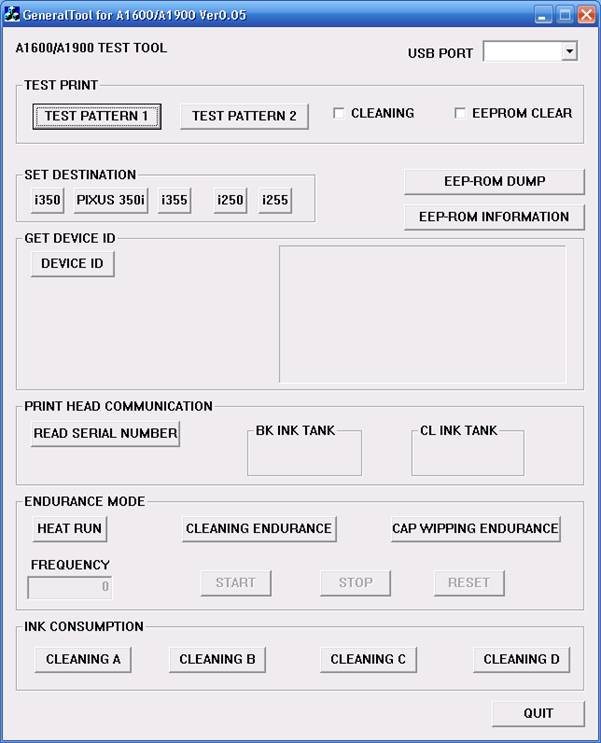

To reset waste ink counter pad in Canon i250, i255, i350, i355 there are two Steps, that is reset manual and reset use software resetter (general tool). Whereas reset manual any two methode can be used. Here Complete tutorial to reset waste ink counter for Canon i250, i255, i350, i355 printers.
Manual Reset for Canon i250, i255, i350, i355
Methode 1 : Manual for service mode
- Unplug power cable from electric source and USB cable from computer.
- Open the printer cover and hold power button.
- Connect power cable to the electric source.
- Close the printer cover then release power button.
Methode 2: Manual for service mode
- Turn off the printer. And disconnect the printer cable.
- Press and hold the POWER button, turn on the printer.
- The indicator LED should be green.
- Press and release the RESUME button , the indicator LED should be orange.
- Press and release the RESUME button again, the indicator LED should be green.
- Release both buttons.
Resettting using software resetter canon i250, i255, i350, i355
- Reconnect the printer cable.
- Download and Run General Tools/software resetter for Canon printers i250, i255, i350, i355.
- Then select USB PORT where your printer installed.
- Choose printer type in SET DESTINATION sections and printer should be reset.
Note : After service mode use software for permanent reset Canon i250, i255, i350, i355
How to stop regedit, taskmanager or msconfig from closing automatically
Since i published my “How to remove new folder exe or regsvr exe or autorun inf virus” article many readers have asked me about how to prevent regedit, taskmanger, msconfig etc from closing withing second of it’s opening.
Now i have to say as i have yet to face this issue personally myself, i am not really able to suggest anything but to recommend people to do a boot time scan from avast, and hope that fixes their problem.
But after receiving a repeated request to fix this issue, i decided to write about the approach that i would take if i face this problem and to collaborate with you to solve your problem and in the process create a workable solution to fix this problem, once and for all.
Symptoms of the problem that we are tying to solve,
- you open regedit, the regedit window flickers and closes again,
- you open taskmanager, window opens and immediately closes.
- you try to open msconfig, window closes the moment it opens.
What might be happening?
My thinking is that some rouge process is running that is scanning for these applications and the moment they open, it closes them.
Our Aim : to identify and kill
so what we need to do is, identify these rouge programs and destroy them by first killing the running process and then deleting the actual application from the system. We need to do this to prevent them from running again.
So first let’s try this solution,
- Create the copy of regedit.exe file and put it in another directory.
- you can do this by selecting the regedit.exe file(located in c:\windows directory) and pressing crtl+c and then crtl+v
- move this copied file to another new directory say c:\eme_utils
- Similarly create the copy of task manager located at (C:\WINDOWS\system32\taskmgr.exe) and system configuration utility aka msconfig located at (C:\WINDOWS\PCHealth\HelpCtr\Binaries\MSConfig.exe)
- Now run these copies by clicking them, to see if you can access the respective applications.
if you don’t want to do this manually you may want to download the xp_emergency tool which does this for you in Windows XP OS.
With this hopefully we may have bypassed the restrictions imposed by the virus or worm or any rouge application, we still need to identify and kill them so that we can leave in peace instead of using alternative solutions.
So let’s start the identification process,
just a warning, this is a repetitive and frustrating process but if you really want to use the taskmanger, regedit or msconfig then you will have to find the process and kill it, so let’s start the journey.
you will need to download Process Explorer from system internals, so that we can identify the culprit process.
once you have downloaded it, extract the zip file and run the procexp.exe file by double clicking it. This will show you all the processes running right now.

From here onwards you are almost on your own, you will have to trust your own knowledge of your system and your intuition. What we now need to do is to kill the processes that you can’t identify.
Note : before making any changes please keep a screen shot or write down the changes that you are doing.
- Look for any process that you can’t identify the source. as you can see from this image
process explorer gives the description and company name of all the process that are running. so the first targets would be the application that you can’t identify the company name or application that you might not have installed. - Once you think a process as rouge, note down the path of that application(this will help you delete the file later) by right clicking the name and clicking on properties window in the pop up.
- Now kill the process tree by right clicking and choosing the kill process tree option
- It is the time now to check if we have killed the right process or not, do find that out simply run the regedit or taskmanger or msconfig and see if they stay opened. if they do, move on to next step otherwise get back to step 1.


Worst that can happen at this stage is that you might kill some important process, in that case you have to just restart the system and you will be back from where you started.
- Once you have identified the process, we will now rename this application by changing the extension to something like *.fix or any thing you like by going to the path that we noted above. We did not delete the file at this stage because we want to be sure that this is the culprit file and not some other file.
- To verify this just restart you system and see if you can still access the regedit, task manger or msconfig, if you can then you want to delete the file that we renamed above.
- If not then we will have to start the identification process again, so start from step 1.
Here are some of the known rouge process that are know to do such things
- WebRebates0.exe
- WebRebates1.exe
- msconfig35.exe
- msconfig45.exe
- funny ust scandal.avi.exe,
- SMSS.exe ( an important windows process, Session Manager Subsystem, of same name also exists so be very careful before killing it.)
- Killer.exe
If you fear, or, are not able to identify the process in that case you may want to save the process explorer output in a text file by hitting crtl+s and post the output in comment below so that I or others who have faced the problem will try to help you identify the rouge process to kill.
I am interested in knowing if this process helped you or not, It will be really good if you can participate in this process and leave a note below about all the rouge process or application that you identified.
This will help others to solve their problem as you might have already noticed their is very little help out their regarding this problem.
Source : http://amiworks.co.in/talk/how-to-stop-regedit-taskmanager-or-msconfig-from-closing-automatically/
Compaq presario C770TU XP Driver
Compaq presario C770TU laptop comes with 1.73 GHz Intel Pentium dual core processor T2370, 1 MB L2 Cache, 1 GB DDR2 RAM, Intel Graphics Media Accelerator X3100,160 GB (5400 rpm) HDD, 15.4” WXGA High Definition BrightView Widescreen and so on. It comes with Free DOS. But if you have downgraded your OS, you would probably have trouble finding the drivers needed for your laptop. This is beacuse HP-Compaq does not support Windows XP anymore. But we have solved the issue for you. For all drivers for Compaq presario C770TU for windows XP, follow the post below.
Kindly check the link to know more about Issues regarding downgrading to or installing Windows XP in HP-Compaq systems
Neither Zyxware Technologies, nor HP-Compaq can give you a guarantee that these drivers will work perfectly in your system. How ever, you may try installing these.
You can either click or copy the given link and paste them onto a new driver to download them.
Video Driver:
ftp://ftp.hp.com/pub/softpaq/
Chipset and LAN Driver:
ftp://ftp.hp.com/pub/softpaq/
Wireless Driver:
http://h30322.www3.hp.com/pub/
HP Quick Launch Buttons:
ftp://ftp.hp.com/pub/softpaq/
Realtek RTL8100CL/RTL8110Sb NIC Driver
ftp://ftp.hp.com/pub/softpaq/
Intel Pro Wireless:
ftp://ftp.hp.com/pub/softpaq/
BroadCom Wireless:
ftp://ftp.hp.com/pub/softpaq/
Synaptics Touchpad drivers:
ftp://ftp.hp.com/pub/softpaq/
HP Help and Support for Microsoft Windows XP :
ftp://ftp.hp.com/pub/softpaq/
This model of Presario has an audio controller that supports the high definition audio. You need to have Microsoft Universal Audio Architecture (UAA) Bus Driver for High Definition Audio installed on the computer before installing the audio driver.
Here is the link for the Microsoft Universal Audio Architecture driver:
ftp://ftp.hp.com/pub/softpaq/
Conexant CX20549-12 High Definition Audio driver:
ftp://ftp.hp.com/pub/softpaq/
Note: Please copy the entire link starting from "ftp" to "exe" and paste it in the address bar of the browser in your computer and press enter.
1. Click on Start and select Run. Now type devmgmt.msc and press enter.
2. Right click on "Audio device on High Definition Audio Bus" and click Update driver.
3. Select "Install from a list or specific location"
4. Click Next. Then select "Don't search, I will choose the driver to install"
5. Click Next and then select "Sound, video and game controller" from the list.
6. Click Next and then click Have Disk.
7. Click Browse C:\swsetup\sp36090 folder and the double click the V32 folder. Select the .inf file, click open and Continue with the onscreen instructions.
Similarly install Modem Drivers:
Conexant CX20548 Modem Driver for Microsoft Windows XP
ftp://ftp.hp.com/pub/softpaq/
1.Right click on "Modem device on High Definition Audio Bus" and click Update driver.
2. Select "Install from a list or specific location"
3. Click Next. Then select "Don't search, I will choose the driver to install"
4. Click Next and then select "Modem" from the list.
5. Click Next and then click Have Disk.
6. Click Browse C:\swsetup\sp33890 folder and select the .inf (wis30b2b) file and click open and Continue with the onscreen instructions.
Fixing Compaq Presario Laptop Not Recognizing Microphone And Headphones In Windows XP
My friends Compaq Presario C770TU laptop started having issues with external headphones and microphone being not recognized by Windows XP, contacting HP support regarding the problem resulted in the response below with links to download Windows XP drivers :
"I would like to share that the above mentioned notebook has not been certified on XP and hence not supported. Hence we would not encourage the use of NON-Certified drivers on the product as it may lead to degraded performance and damage the product in some instances which would then not be covered under standard warranty.
However if you would like to pursue Win XP installation on the product, I have captured the links below wherein the nearest compatible drivers are available."
First of all its very bad on HP's part to not support one of the world's most successful and widely used operating system, secondly the audio driver they sent links to download does not solved the problem, I had to try different Conexant audio drivers to finally find a working one , if you are having similar issues with your HP laptops follow the instructions ahead to get your headsets working on Windows XP.
Problem : Unable to use internal or external microphone, laptop speakers won't mute while external headphones are plugged in, installing HP's sound driver (sp34386) produces error message: "Driver Installation Failed: Could not find the MEDIA device for this driver" on HP Compaq Presario Laptop running Windows XP.
Solution : Download and install correct drivers as follows.
- Download and install Microsoft UAA Audio Driver, reboot your laptop after install.
- Download and save Conexant SmartAudio 221 audio driver.
- Unzip the downloaded driver and run setup, if error occurs use device manager as instructed next.
- Right-click My Computer and select Manage.
- Click Device Manager from Computer Management screen and navigate to "Sound, video and game controllers", right-click Conexant High Definition Audio or Audio Device on HD entry and select driver update.
- Continue with the wizard selecting "No To Connect - > Install from a list or specific location -> Don't Search, I will choose the driver to install".
- Click Have Disk button.
- Browse for the folder downloaded and extracted in Step 2 above and select the driver file WiSVHe5.inf.
- Ignore any warnings and continue installation, your problem should be fixed now.


Sumber : http://www.megaleecher.net/Fixing_Laptop_Microphone_Issues


